
Divi Accessibility Fixer DS Documentation
Divi Accessibility Fixer DS finds accessibility issues on your Divi 5 pages, takes you to the exact module in the Visual Builder and helps you fix them in Divi’s own settings. This guide covers installation, checking pages, fixing issues, the site dashboard, reports, the accessibility statement and every setting.
Contents
- Overview and requirements
- Installation and getting started
- Checking a page from the dashboard
- What it checks
- The Visual Builder panel
- Fixing issues
- Ignore and mark as reviewed
- Site dashboard and site checks
- Theme Builder layouts
- Manual checks
- Alt text in the Media Library
- Reports
- Accessibility statement
- Optional site-wide enhancements
- Warning after saving
- The automated check score
- Privacy, access and uninstall
- Using it with other accessibility plugins
- Troubleshooting and known limits
- FAQ
1. Overview and requirements
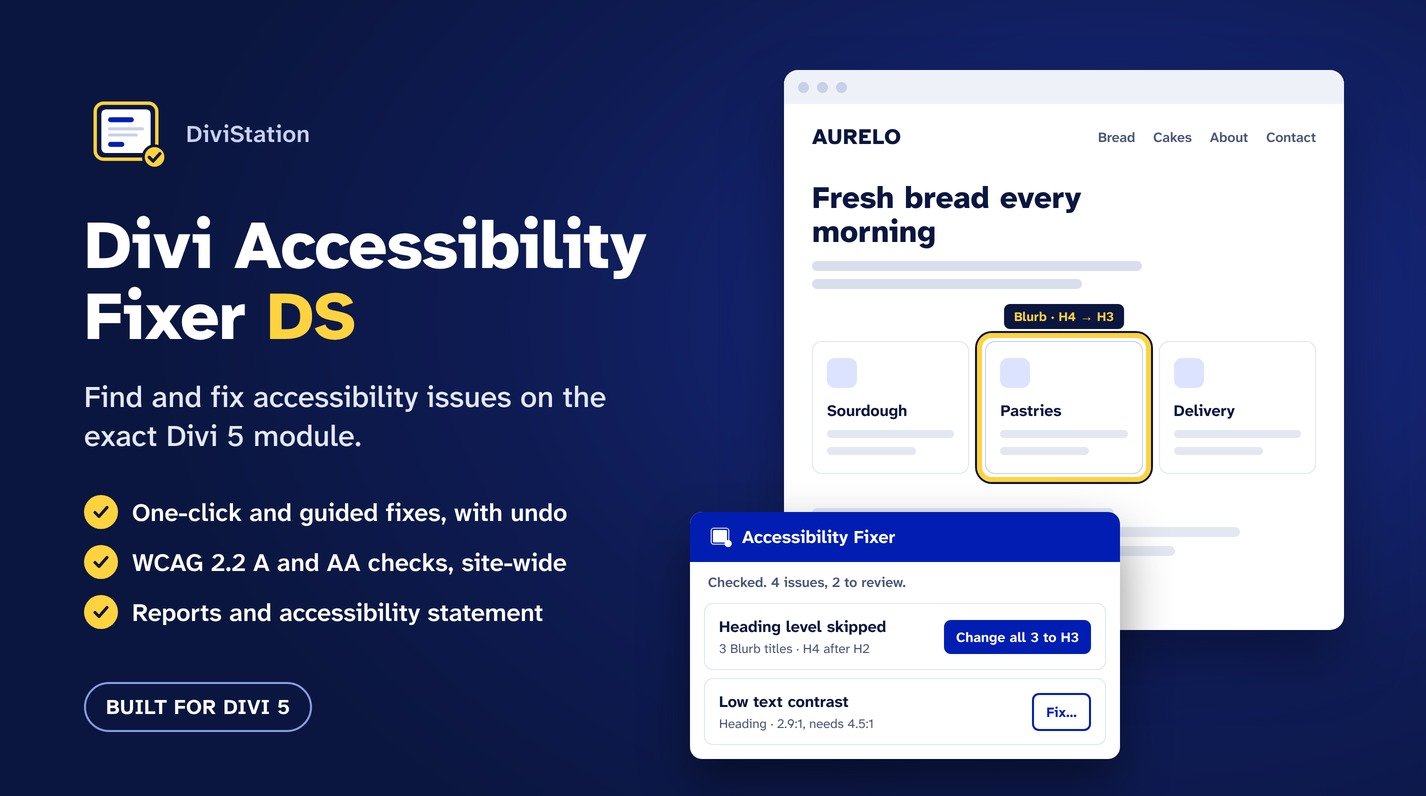
What it does
- Checks your pages against WCAG 2.0, 2.1 and 2.2 level A and AA rules, plus 21 checks written for Divi sites.
- Ties every issue to a Divi module, for example “Image: Meadow photo · Page content · Section 1 › Row 2 › Column 1”, or “Theme Builder header”.
- Takes you to the module in the Visual Builder, with its settings open on the group where the problem is fixed.
- Fixes issues in Divi’s own settings, with one-click fixes and short guided forms. Every fix can be undone and is only kept when you save the page.
- Checks the whole site, shows an automated check score per page, lists Theme Builder layouts and Media Library images without alt text.
- Creates reports (printable, PDF or CSV) with your own name and logo, and helps you write an accessibility statement.
What automated checks can and can’t do
Automated checks find only part of the accessibility issues on a page. Divi Accessibility Fixer DS shows three kinds of results:
- Issues: problems the checks can detect reliably.
- Needs review: items a person has to decide, for example whether an image with empty alt text is really decorative.
- Manual checks: the WCAG criteria that only a person can check, such as keyboard use or meaningful reading order, with a place to record the result.
The plugin helps you find and fix problems and work towards WCAG 2.2 AA. It doesn’t certify a website or state that it conforms to WCAG, EN 301 549 or any law.
Requirements
- Divi 5.14 or later (tested with the Divi theme 5.14.0)
- WordPress 6.5 or later (tested up to WordPress 7.1)
- PHP 7.4 or later
- The site address and the WordPress address must be on the same domain.
With an older version of Divi 5, or without Divi 5, the plugin only shows this notice and loads nothing else: “Divi Accessibility Fixer DS needs Divi 5.14 or later. Please update Divi to use it.”
Privacy
Nothing is sent outside your site. Checks run in your own browser and the results are stored in your WordPress database. Visitors load nothing from the plugin, unless you turn on one of the optional enhancements.
2. Installation and getting started
Install the plugin
- Download the plugin zip from your Divi Marketplace account.
- In WordPress, go to Plugins > Add New > Upload Plugin, choose the zip and click Install Now.
- Click Activate.
The plugin adds an Accessibility Fixer menu to the WordPress dashboard. Updates are delivered through Divi’s update system, like other Divi Marketplace products.
Who can use it
Only administrators can use Accessibility Fixer by default. Other users don’t see its screens, its builder button or its warnings. See Privacy, access and uninstall to give access to other roles.
Your first check and fix in four steps
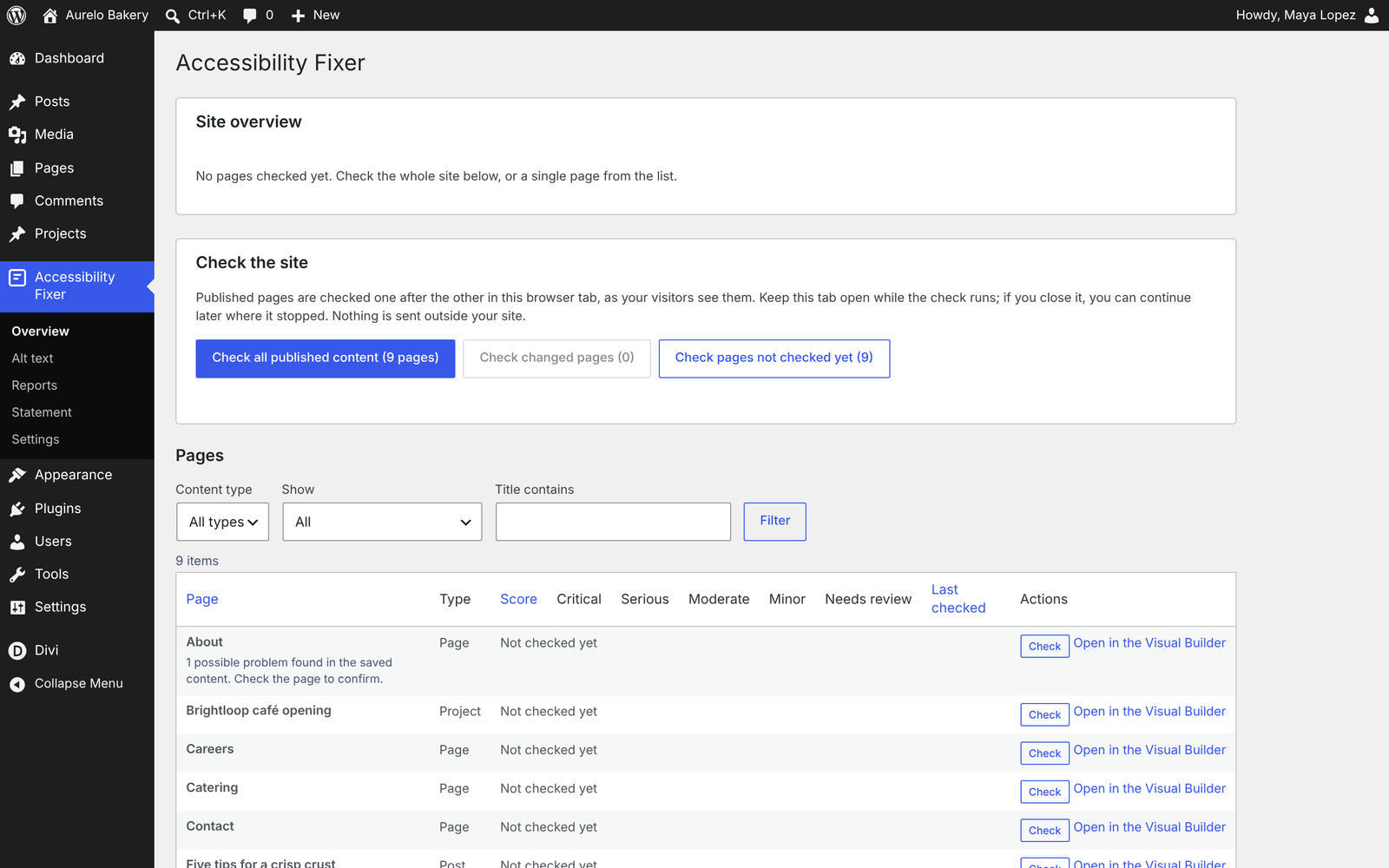
- Go to Accessibility Fixer > Overview and click Check next to a page. After a few seconds, the page shows its automated check score and the number of problems.
- Open the page’s results to see each issue, the module it’s in and how to fix it.
- Click Fix in the Visual Builder next to an issue. The builder opens with the Accessibility Fixer panel at that issue and the module selected.
- Click the fix button (for example Change to H3 or Fix…), then save the page in Divi.
3. Checking a page from the dashboard
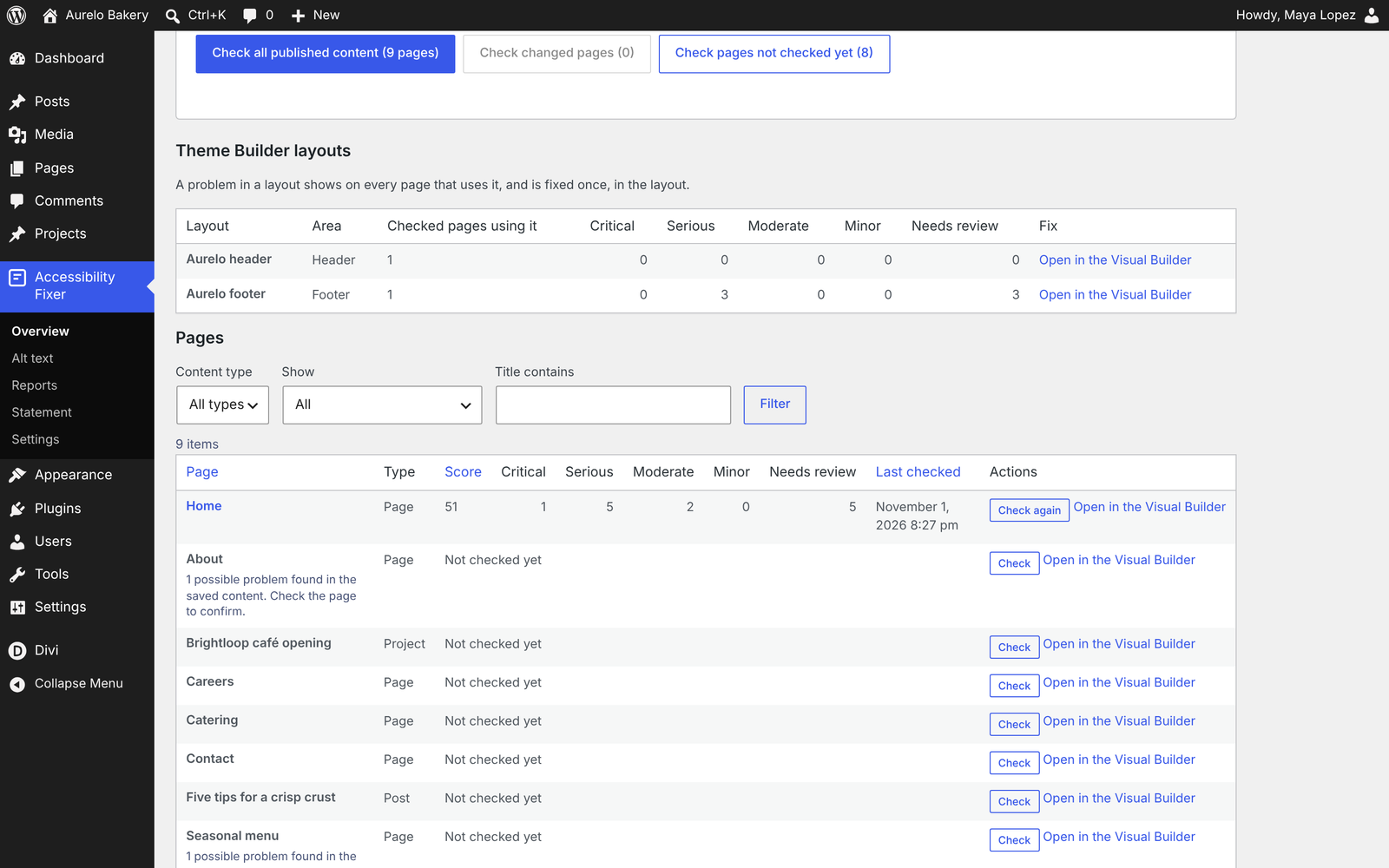
In Accessibility Fixer > Overview, click Check (or Check again) next to any page, post or project, drafts included. The page is loaded out of sight in the same browser window and checked as visitors see it, including the Theme Builder header, body and footer. A check takes about 3 seconds per page.
The results screen
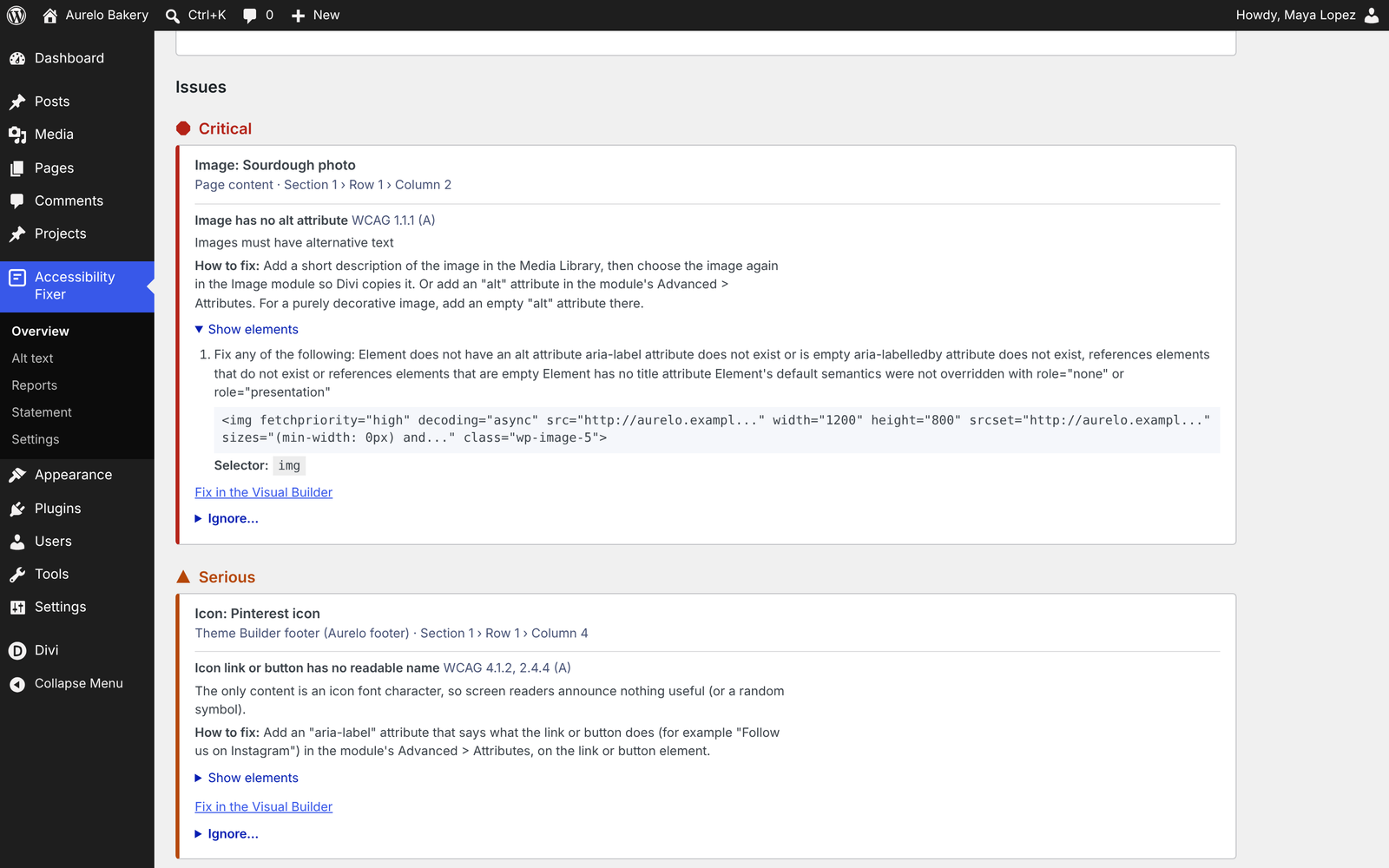
Click a page to open its results. Issues are grouped by severity, then by module and rule:
| Severity | Meaning |
|---|---|
| Critical | Can stop some visitors from using the content. |
| Serious | Makes the content very hard to use for some visitors. |
| Moderate | Causes difficulties for some visitors. |
| Minor | A smaller problem. |
Each severity has its own icon shape as well as its own colour, so it’s never shown by colour alone.
Each issue shows:
- A plain-language explanation of the problem.
- How to fix, in Divi terms.
- The WCAG success criterion and level.
- The module and where it is: “Page content · Section 2 › Row 1 › Column 3”, “Theme Builder header (layout name)”, “Divi theme” or “Whole page”.
- The affected elements, with their HTML and selector.
- A Fix in the Visual Builder link for issues in a module, and Ignore….
Items that need a person to decide are listed separately under Needs review, with Mark as reviewed….
The results page also has the page’s manual checks and the fixes made on that page in the Visual Builder (see Fix history).
History
The last 20 checks of each page are kept, so you can follow its progress.
4. What it checks
Divi Accessibility Fixer DS combines the WCAG 2.0, 2.1 and 2.2 level A and AA rules of the axe-core engine with 21 DiviStation checks for problems common on Divi sites.
DiviStation checks
| Area | Check | Result |
|---|---|---|
| Images | Image module without alt text, although the Media Library has one (Divi copies the alt text only when the image is chosen) | Issue |
| Alt text that looks like a file name or a placeholder word | Issue | |
| Images with empty alt text that may not be decorative | Needs review | |
| Headings | Skipped heading levels (similar headings side by side are judged together) | Issue (best practice) |
| No H1, or several H1s | Needs review | |
| Text that looks like a heading (large or bold, short, before other content) but isn’t one | Needs review | |
| Links and buttons | Vague link text such as “Read more”, or the same text for different destinations | Needs review |
| Links that open a new tab without saying so | Needs review | |
| Icon links and buttons whose only content is a Divi icon (no readable name) | Issue | |
| Icon characters that screen readers may read aloud | Issue | |
| Forms | Form fields whose label disappears while typing (placeholder only) | Needs review |
Name, email, phone and address fields that don’t say what they collect (autocomplete) |
Needs review | |
| Motion and media | Sliders and carousels with automatic animation | Issue |
| Background videos without a pause control | Needs review | |
| Embedded videos: check captions | Needs review | |
| Video or audio that plays sound by itself, including YouTube and Vimeo embeds set to autoplay without mute | Issue | |
| Keyboard | No skip link to the main content | Needs review |
| No visible keyboard focus: the site’s CSS removes the focus outline and adds no other focus style | Issue | |
| Focused element completely hidden behind a fixed or sticky element, such as a sticky header or cookie bar | Issue | |
| Layout and colour | Text on a background image or gradient, whose contrast can’t be measured (with Divi advice) | Needs review |
| Content wider than a phone screen: the page is checked again at 320 pixels wide. Tables, maps, code, media and sliders are skipped, as WCAG 1.4.10 allows. | Issue |
Rules from axe-core
The axe-core rules cover, among others, colour contrast, missing alt text, form labels, link and button names, page title and language, landmarks, ARIA use and zoom blocking. Each result shows its WCAG success criterion.
Where each check runs: the Visual Builder panel runs the same checks as the dashboard, except page-wide settings (page title, language and zoom), which are checked from the dashboard.
5. The Visual Builder panel
Open the panel
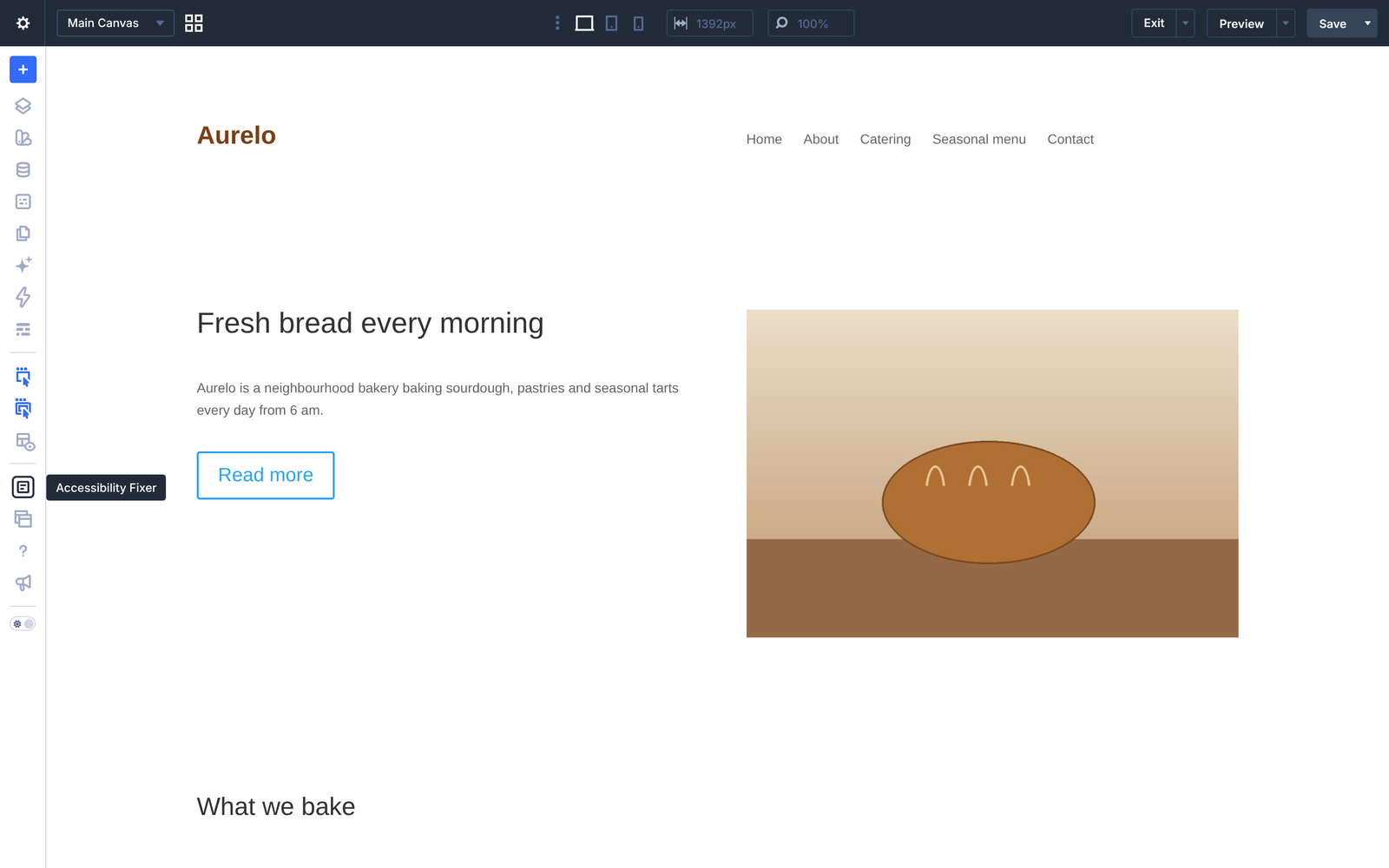
In the Visual Builder, click the Accessibility Fixer button in the left builder bar, below X-Ray. The panel opens and checks the page straight away. You can move, resize, expand and dock it like Divi’s own panels.
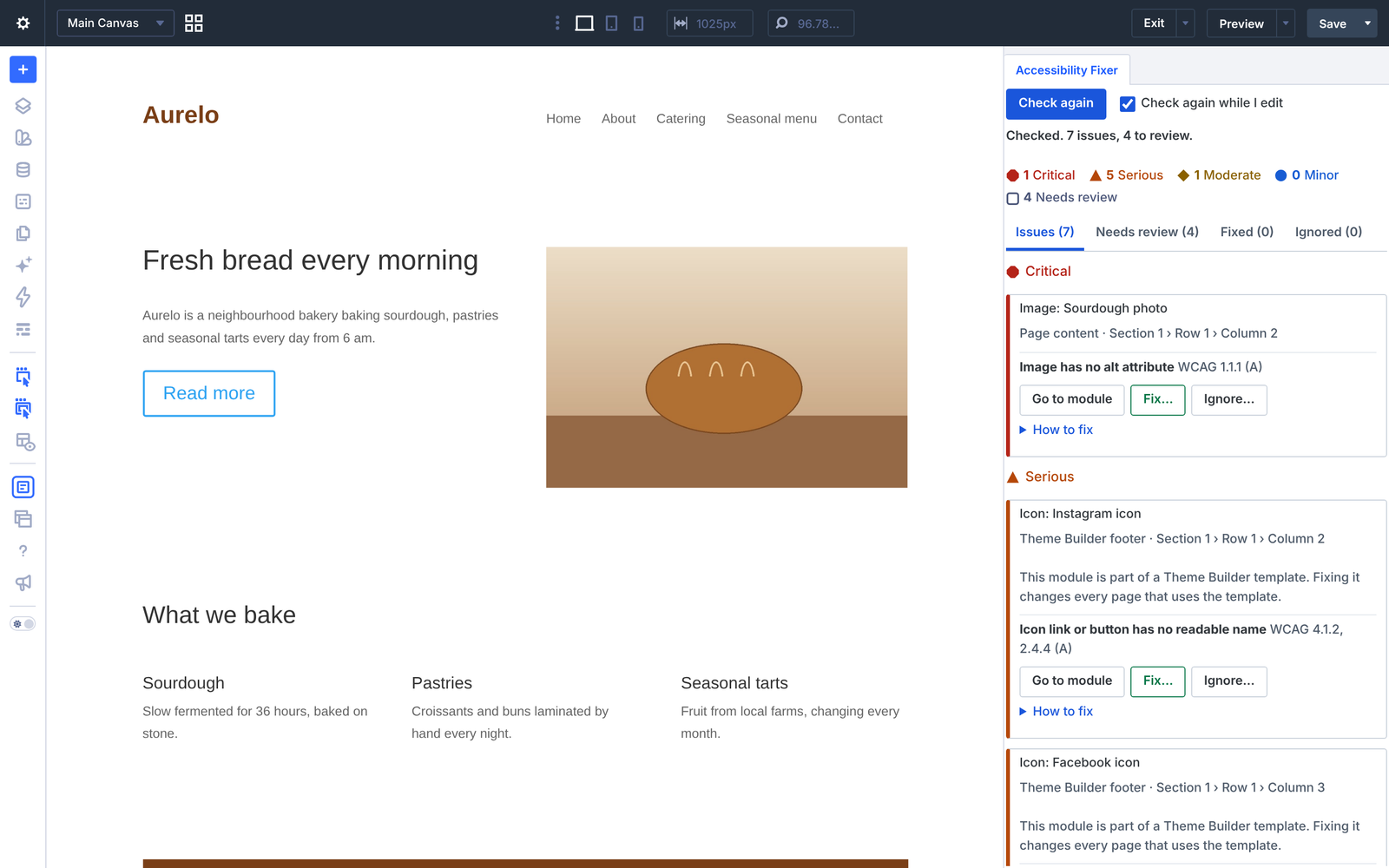
The panel checks the page as shown in the builder, including your unsaved changes and the Theme Builder header, body and footer shown on the page. After a check, it shows a status such as “Checked. 17 issues, 8 to review.”
Tabs
| Tab | What it shows |
|---|---|
| Issues | Problems found, by severity, then by module, with the WCAG reference, a short detail (for example the contrast ratio, the heading levels or the Media Library alt text), How to fix and the elements. |
| Needs review | Items a person has to decide. |
| Fixed | The fixes you made, with Undo. |
| Ignored | Ignored and reviewed items, with who decided, when, the reason and the note, and Restore. |
Go to module
Click Go to module on an issue. Divi selects the module, opens its settings on the tab and group where the problem is fixed and outlines the module on the canvas with a yellow focus ring. Examples:
- Heading levels: Design > Heading Text
- Automatic slides: Design > Animation
- Missing labels: Advanced > Attributes
- Images: Content > Image
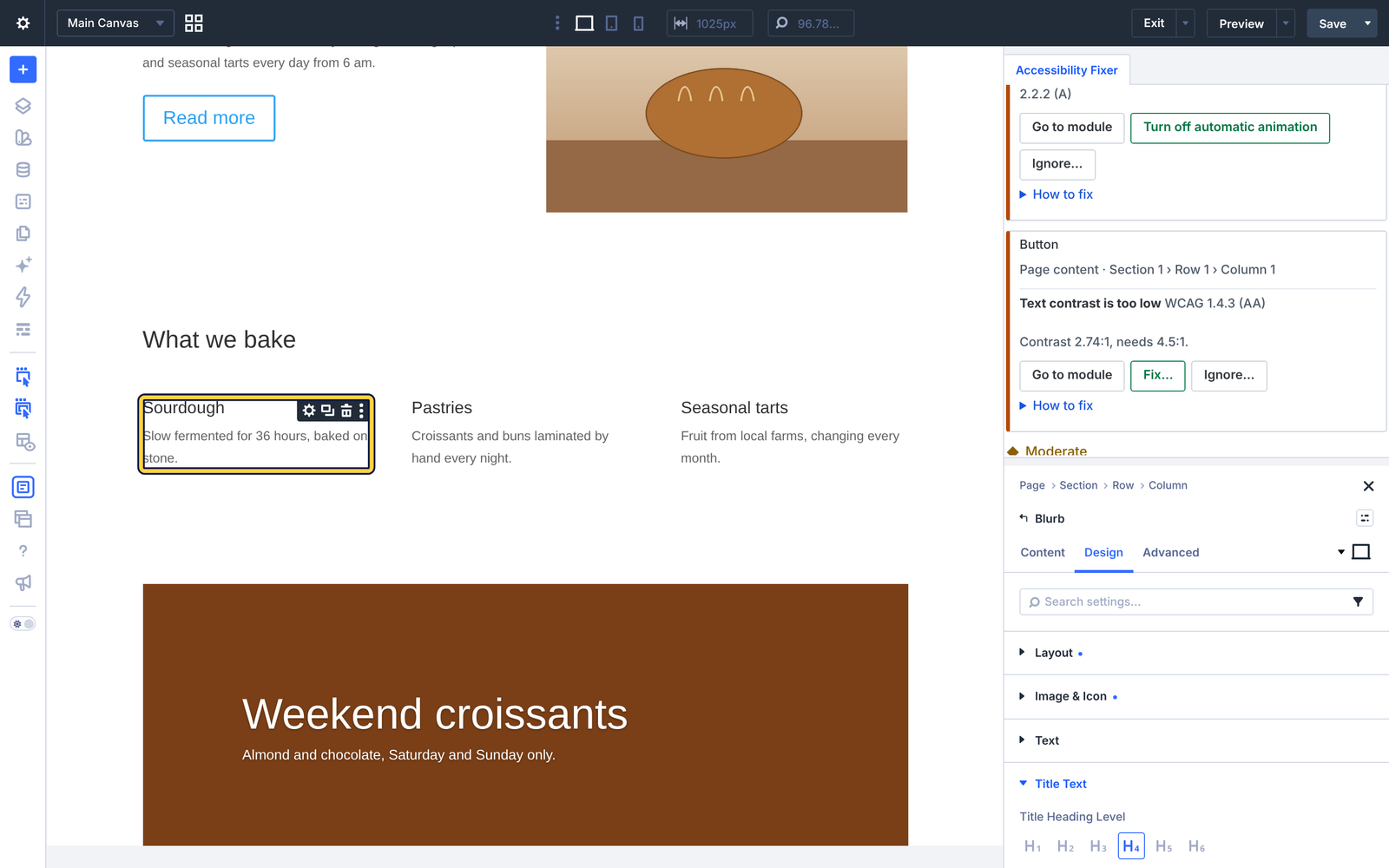
Go to module also works for modules in a Theme Builder header or footer, directly from the page. The panel then notes: “This module is part of a Theme Builder template. Fixing it changes every page that uses the template.”
Check again while I edit
With Check again while I edit turned on (the default), the panel checks the page again about 1.5 seconds after your last change, so you see an issue disappear as you fix it. Use Check again to check manually at any time.
Note: builder results aren’t stored, because they describe unsaved changes. After fixing, check the page again from the dashboard to update its stored score.
Keyboard
The panel works with the keyboard: move between tabs with the arrow keys, and after a fix the focus moves to the confirmation message.
6. Fixing issues
Fixes are made in the Visual Builder panel. Every fix:
- writes the module’s own Divi settings, exactly what you would set by hand, so you can see it in Divi’s settings panel;
- can be undone with Undo in the confirmation, in the Fixed tab, or with Divi’s own Undo and Redo;
- is only kept when you save the page (or the Theme Builder layout) in Divi.
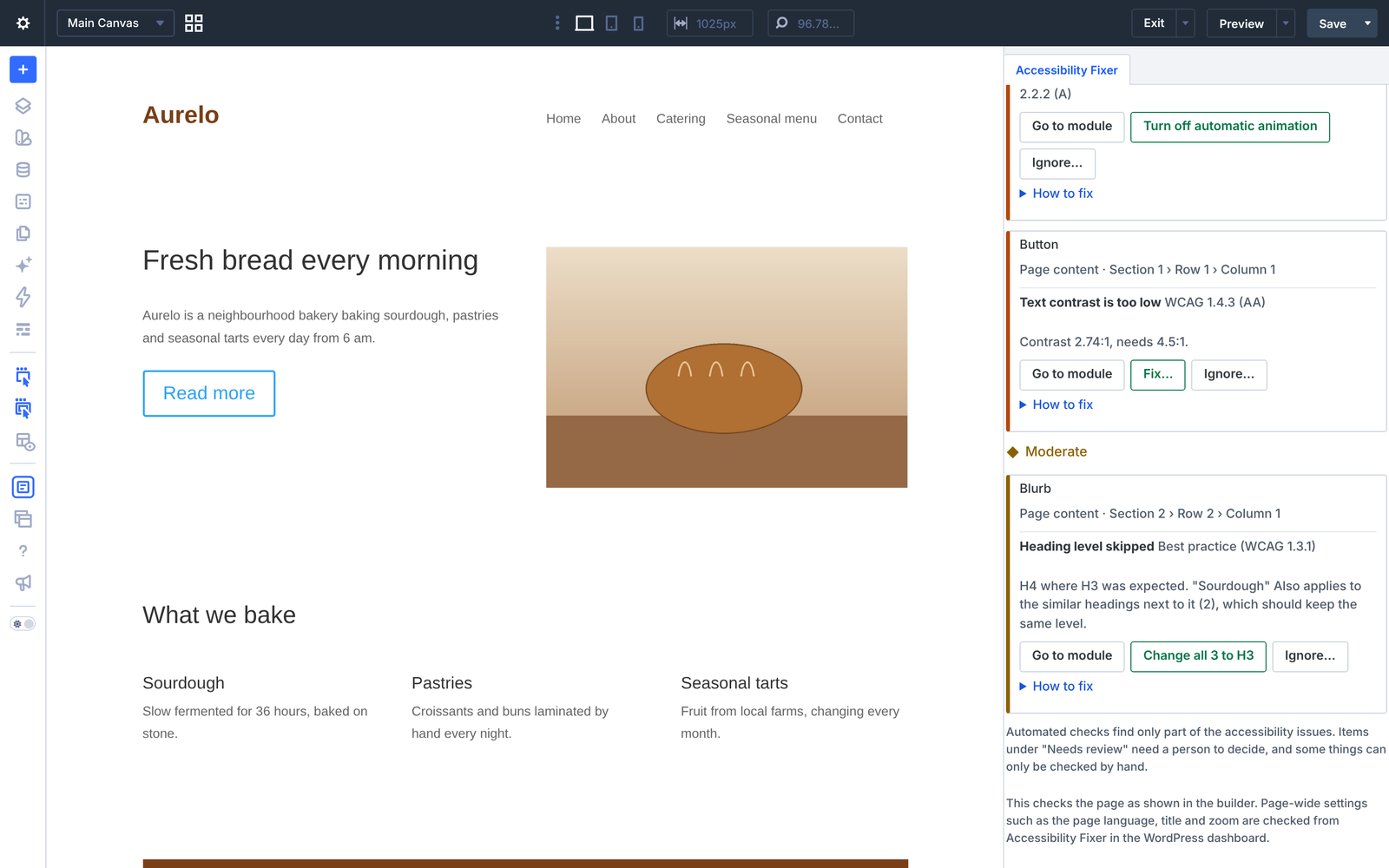
After a fix, the panel confirms what changed, for example “Heading level changed from H4 to H3. Save the page to keep the change.”
One-click fixes
| Issue | Button | What it changes |
|---|---|---|
| Skipped heading level | Change to H3 (the level that fits the heading before it) | The module’s heading level. Works on about 35 Divi modules with a heading level setting, such as Heading, Blurb, Call To Action, Toggle, Accordion, Team Member, Pricing Table and Slider. Similar headings side by side (a row of Blurb titles, footer widget titles) get one suggestion, for example “Change all 3 to H3”, and one Undo restores them all. |
| Image module without alt text, while the Media Library has one | Use the Media Library alt text | Copies the alt text into the module, where Divi stores it (Advanced > Attributes, “Image Alt”). |
| Slider or carousel with automatic animation | Turn off automatic animation | Turns off automatic animation on the Slider, Fullwidth Slider, Post Slider, Fullwidth Post Slider and Group Carousel. |
| Contact Form using placeholders only | Show field labels | Shows the field labels above the fields. |
Guided fixes
Click Fix… to open a short form in the panel, then Apply.
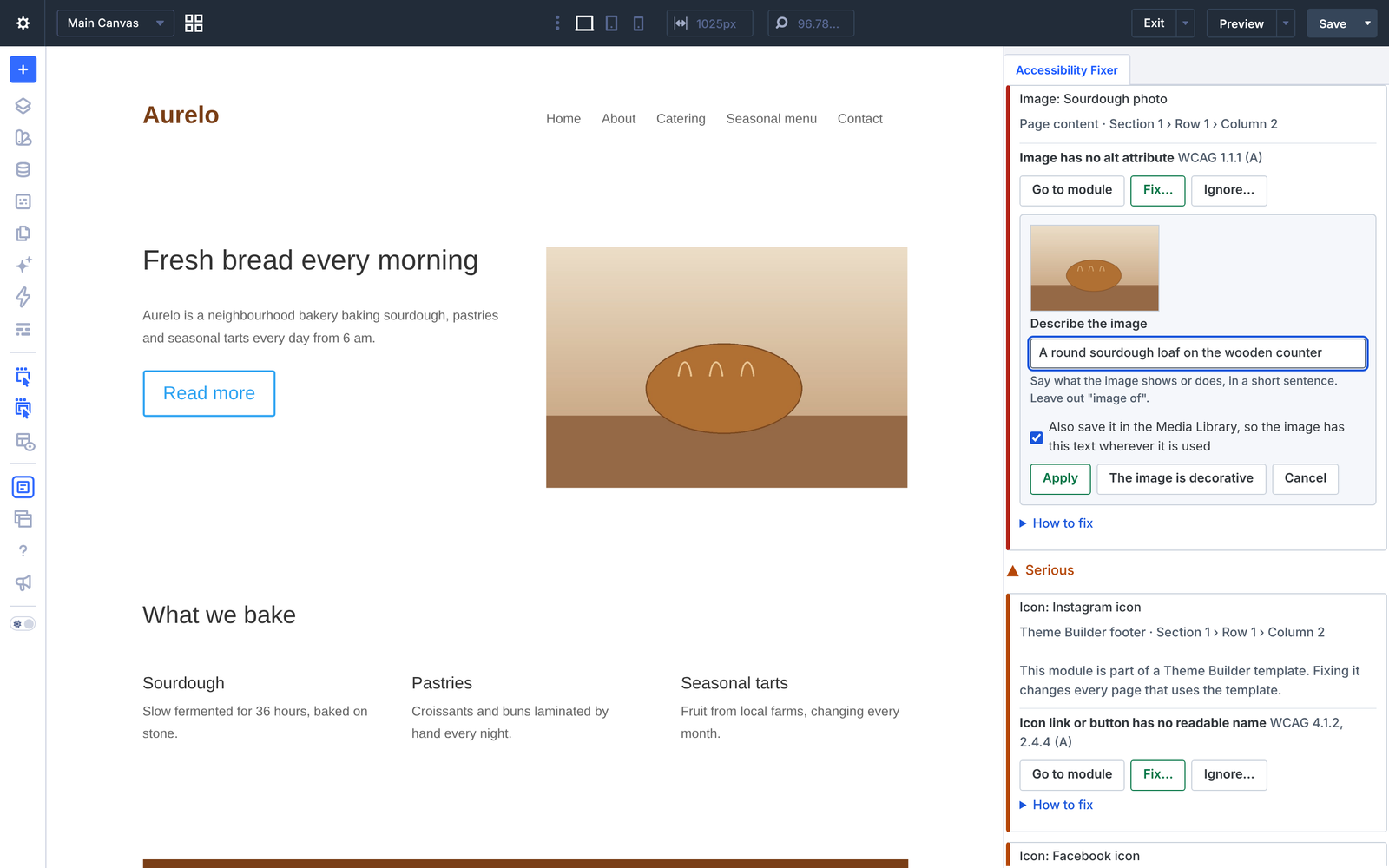
Alt text
For images without alt text, or with alt text that looks like a file name. The form shows a preview of the image and a field, “Describe the image”. The option to also save the text in the Media Library is on by default, so the image has the text wherever it’s used. If the image is only decoration, choose The image is decorative: screen readers then skip it.
Undoing an alt text that was also saved in the Media Library puts back the Media Library’s previous text.
Labels for icon links and buttons
For icon links, social icons and buttons without a readable name. The fix adds a label for screen readers on the exact link. A suggestion is filled in, for example the social network (“Follow us on Instagram”) or a name from the link address (“Contact”). Edit it if needed.
Vague link text on buttons
For buttons such as “Read more”: change the button text, or keep it and add a label for screen readers. Start the label with the visible words, so people using voice control can still say them to click the button.
Colour contrast
For Heading, Button and Text modules. The form suggests text colours that pass against the background, each with its contrast ratio and an “Aa” preview:
- first your site’s global colours, closest to the current colour first (they stay linked as global colours);
- then the nearest passing shade of the current colour.
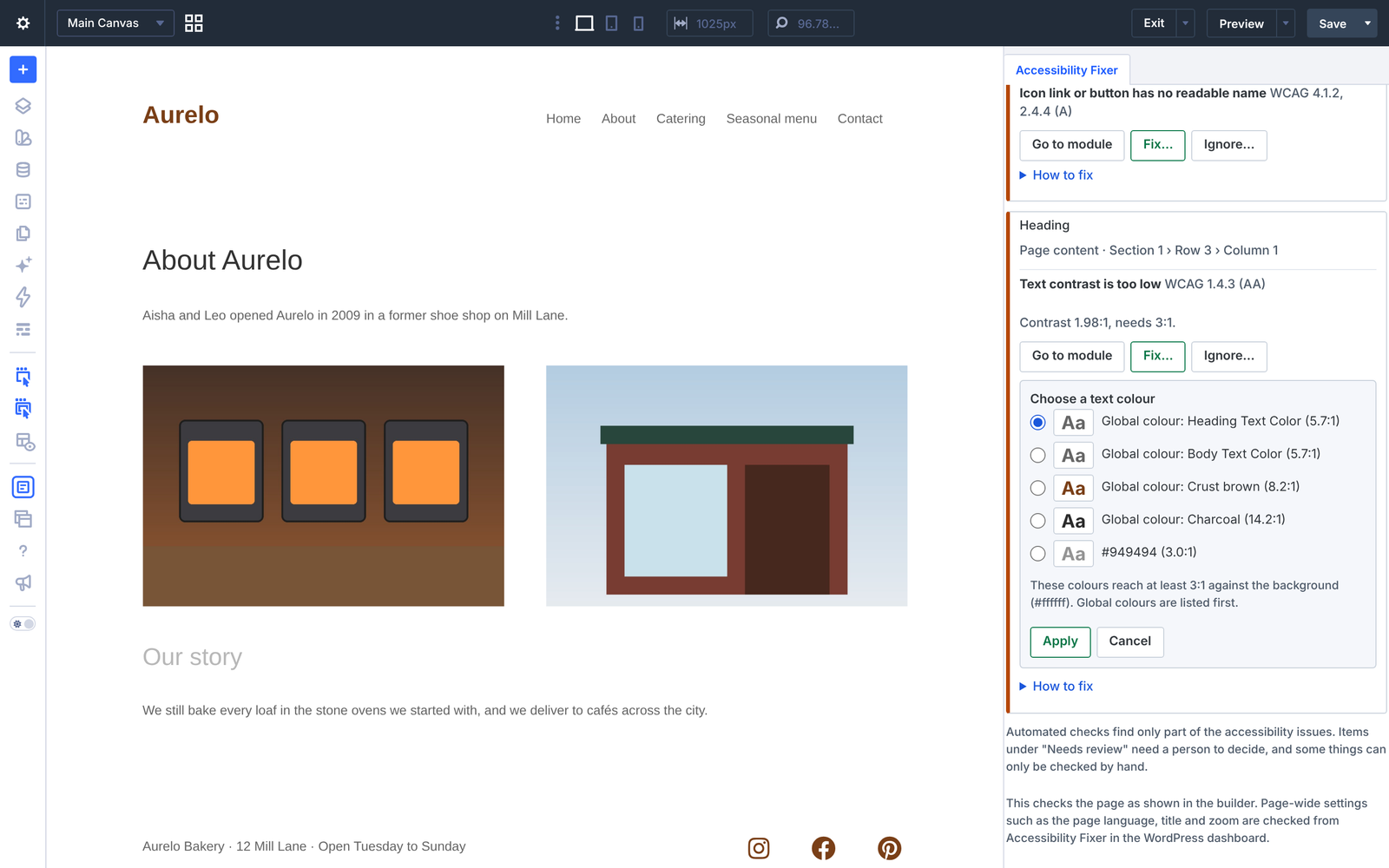
If the colour is written inside the text itself (for example with the text editor), the contrast fix isn’t offered: How to fix explains where to change it. For other modules, use Go to module and change the colour by hand.
Issues without a fix button
Every issue has How to fix with the steps in Divi, and Go to module to open the right settings.
7. Ignore and mark as reviewed
Not every result needs a change. Use Ignore… on an issue, or Mark as reviewed… on a Needs review item, choose a reason and add a note if you like (up to 500 characters).
| Action | Reasons |
|---|---|
| Ignore… | Not a problem here · Decorative content · Handled another way · The check is wrong here · Other reason |
| Mark as reviewed… | Checked: no problem · Checked: decorative content · Checked: other |
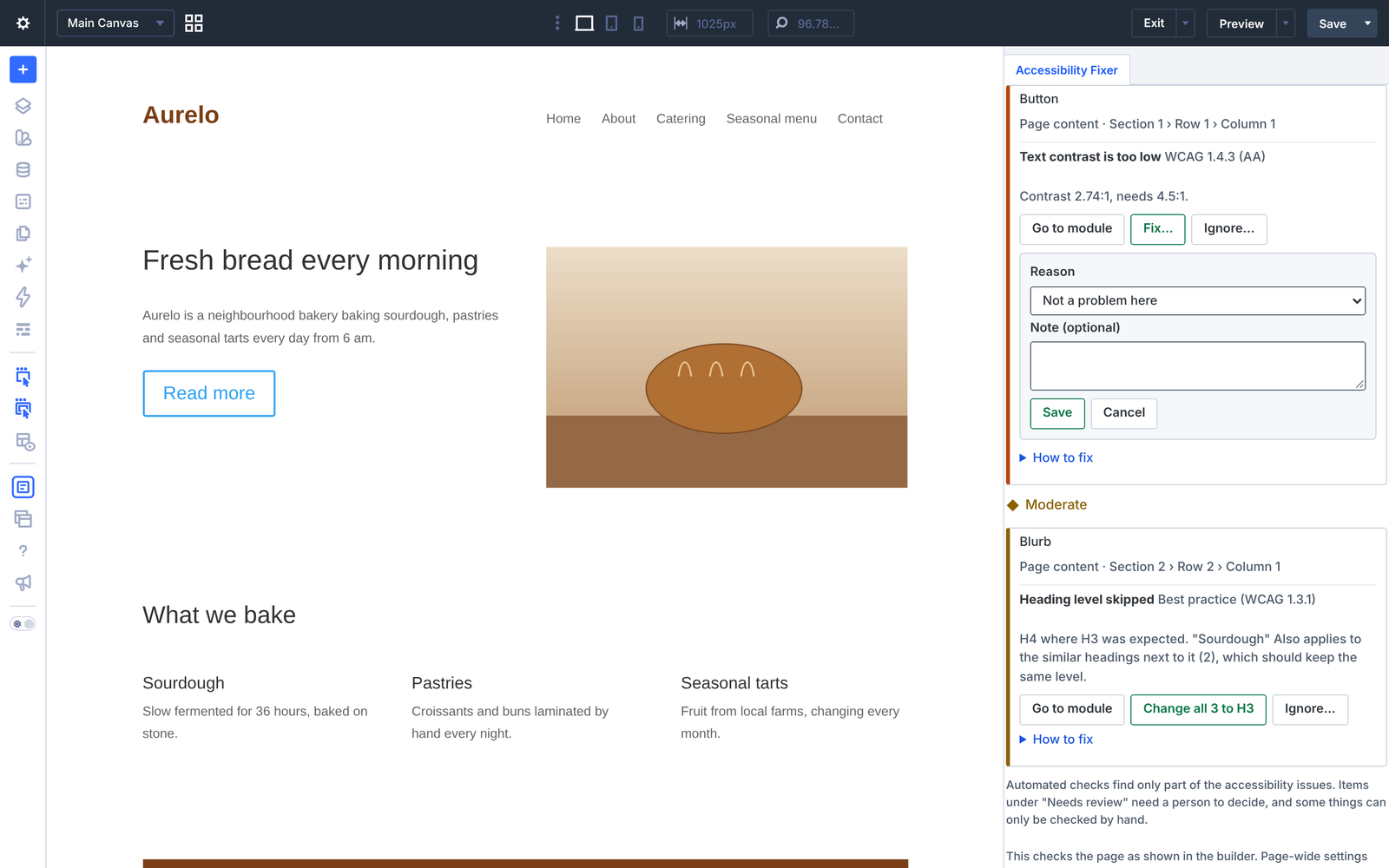
- Ignored and reviewed items leave the issue lists, the counts and the score.
- They’re shared between the Visual Builder panel and the dashboard, and kept when you reload the builder or check the page again.
- The Ignored tab (builder) and the Ignored and reviewed section (dashboard) show who decided, when, the reason and the note. Click Restore to make an item count again.
- An item in a Theme Builder header or footer is ignored for every page that uses that template.
8. Site dashboard and site checks
Overview
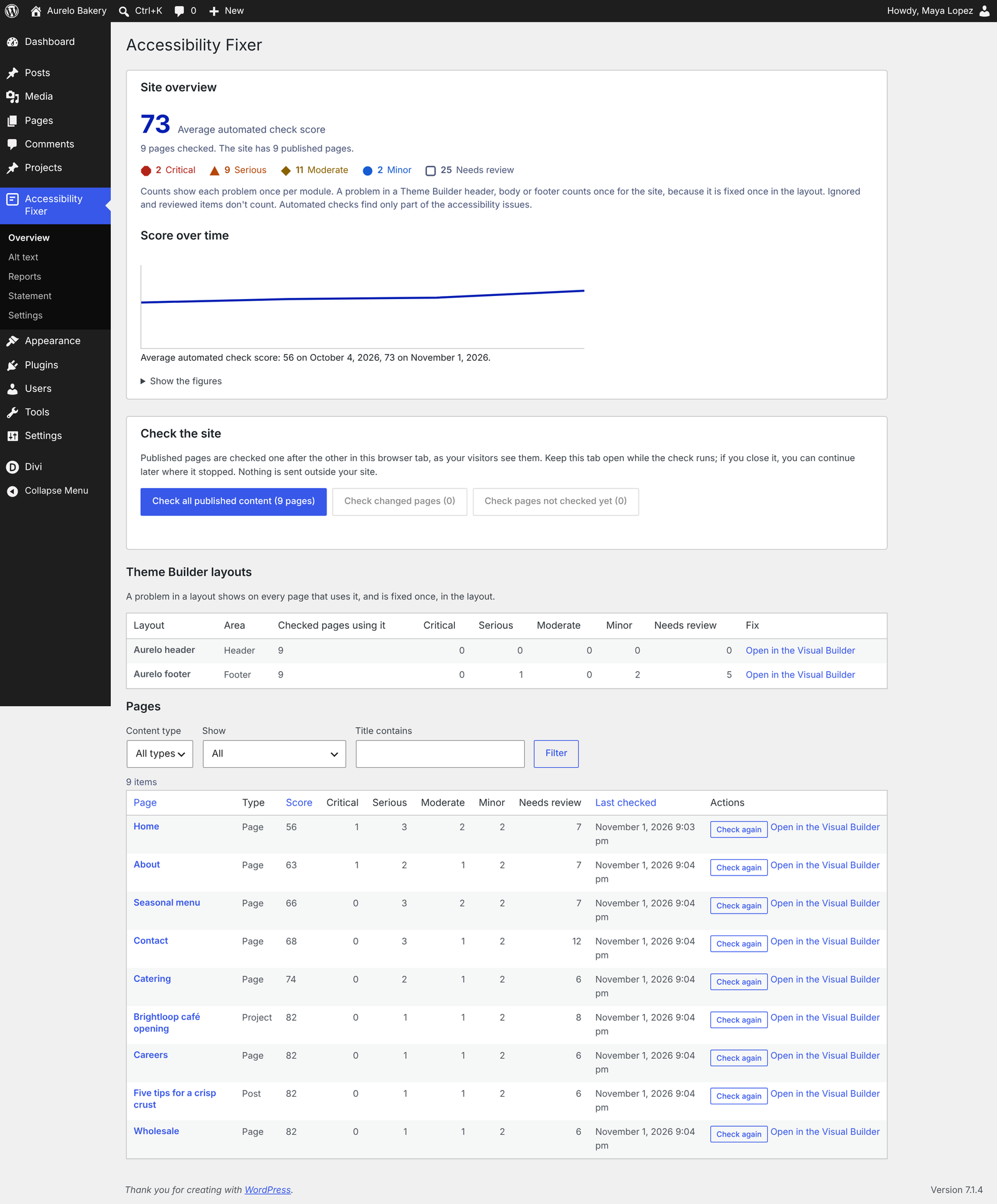
Accessibility Fixer > Overview shows the whole site:
- the average automated check score, the number of pages checked and the problems by severity;
- the score over time, as a chart with a text description and a table of the figures;
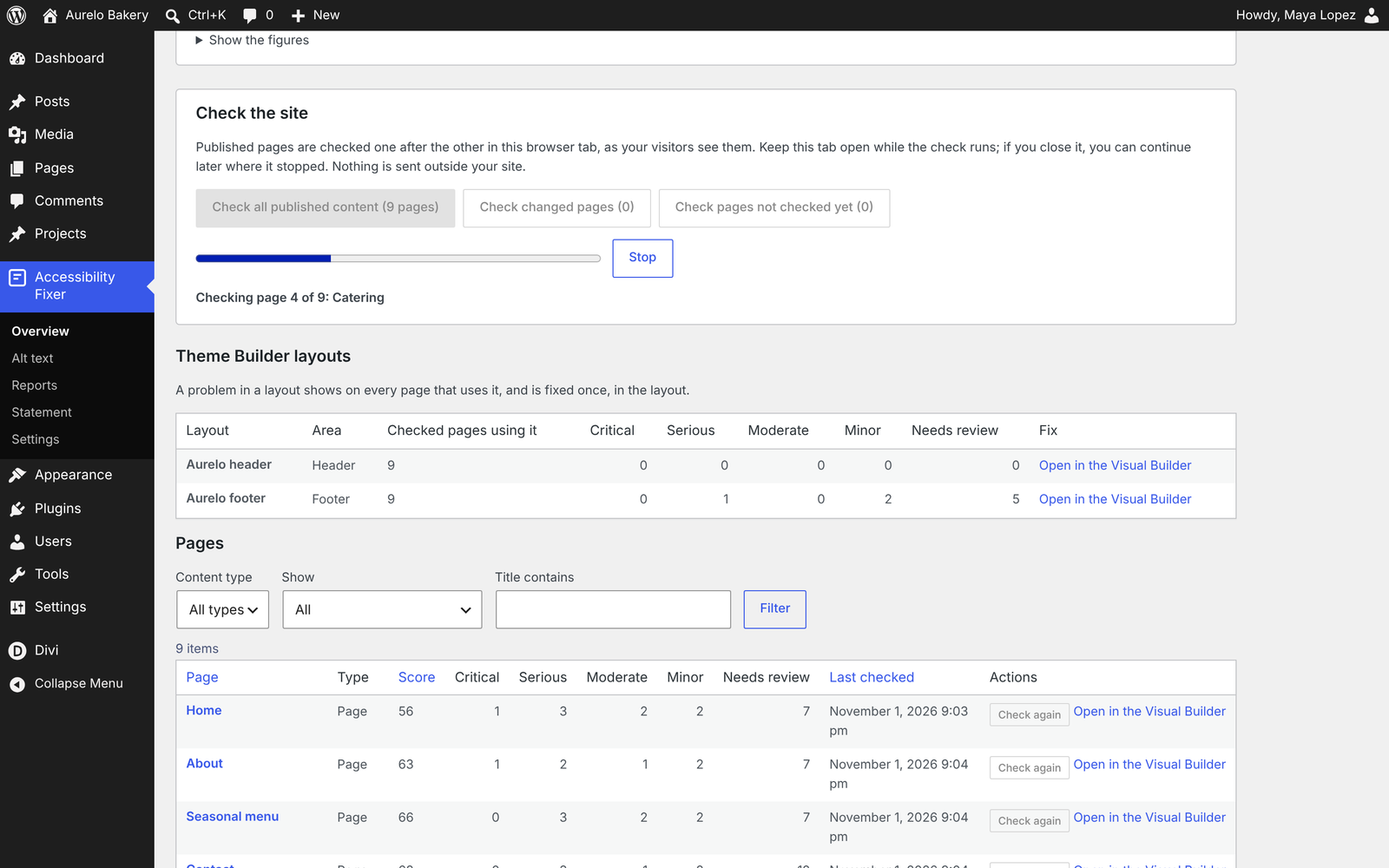
- every page, post and project with its score, its counts, its last check and the actions Check and Open in the Visual Builder.
Filter by content type, with issues, changed since the check, checked or not checked yet; search by title; sort by score (worst first), title or date. The list shows 25 items per page.
Check the whole site
Choose what to check:
- Check all published content
- Check changed pages: pages edited since their last check, or showing a Theme Builder layout that was edited
- Check pages not checked yet
Pages are checked one after the other in your browser tab, as visitors see them, with a progress bar (“Checking page 4 of 12: About us”) and a Stop button. It takes about 3 to 5 seconds per page.
Keep the tab open while the check runs. If you close it or click Stop, the dashboard later shows “A site check stopped with 8 of 12 pages left.” with Continue the check or Cancel it, in any tab. A page that can’t be checked is skipped and reported at the end.
Site checks cover published content. Drafts can be checked one by one with Check.
Background check of the saved content
Every hour, and right after a page is saved, the plugin reads the saved Divi content without loading the pages. It finds images without alt text, Image modules missing the Media Library alt text and sliders that move automatically. Pages not checked yet, or changed since their check, then show “N possible problems found in the saved content. Check the page to confirm.”
Fix in the Visual Builder
Every issue in a module has a Fix in the Visual Builder link. The builder opens with the Accessibility Fixer panel already open at that issue, the module selected and its settings open. If the issue is already gone, the panel says so.
Fix history
The results of a page list the fixes made in the Visual Builder on that page and on its Theme Builder layouts, with who made them, when, and their status: Saved, Not saved yet or Undone.
9. Theme Builder layouts
A problem in a Theme Builder header, body or footer shows on every page that uses it, and is fixed once, in the layout. The dashboard has a table of the layouts shown on checked pages, with the number of checked pages using each one and their problems.
In the site totals, a problem in a layout counts once for the whole site, not once per page.
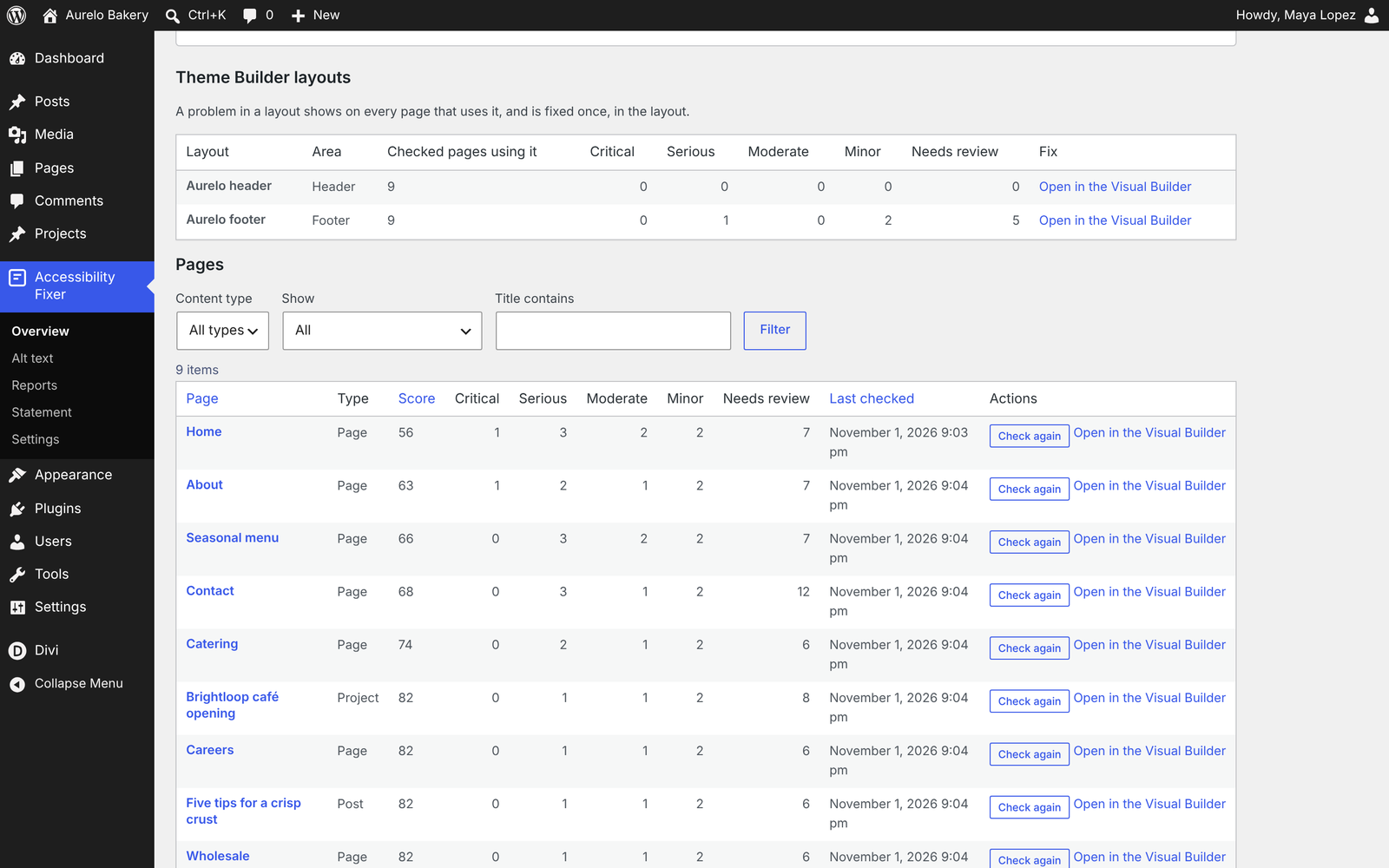
In the Visual Builder, issues in the header or footer appear on the page you’re editing; Go to module and the fixes work on them directly and change every page that uses the template.
10. Manual checks
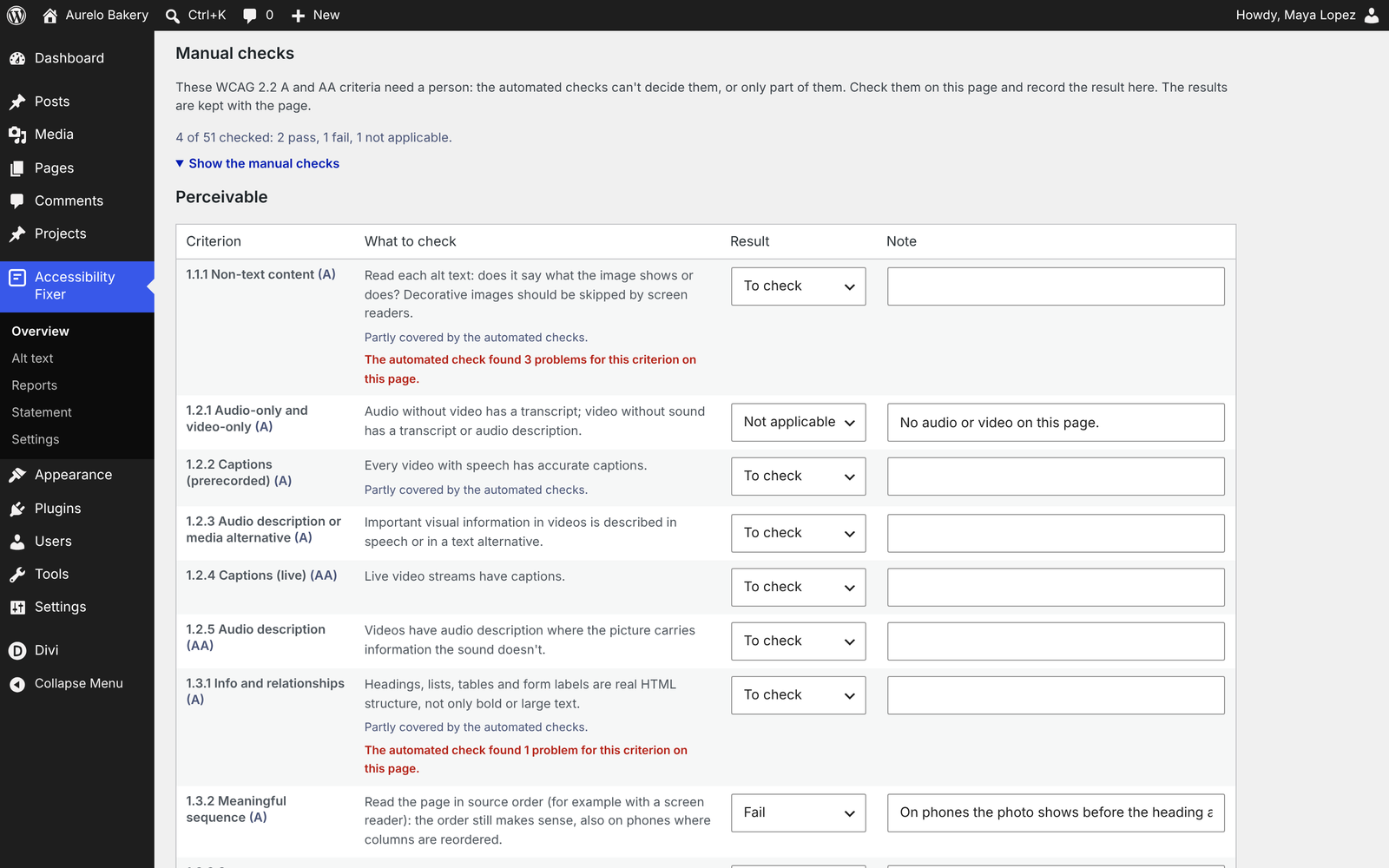
Each page’s results include the 51 WCAG 2.2 A and AA criteria that automated checks can’t fully decide, grouped by principle (Perceivable, Operable, Understandable, Robust). For each one:
- a short “what to check”;
- “Partly covered by the automated checks” where relevant, with the number of automated findings for that criterion on the page;
- a result: To check, Pass, Fail or Not applicable, and a note.
A progress line shows where you are, for example “2 of 51 checked: 1 pass, 1 fail, 0 not applicable.” The results are kept with the page, can be included in reports and criteria marked Fail can be listed in the accessibility statement.
11. Alt text in the Media Library
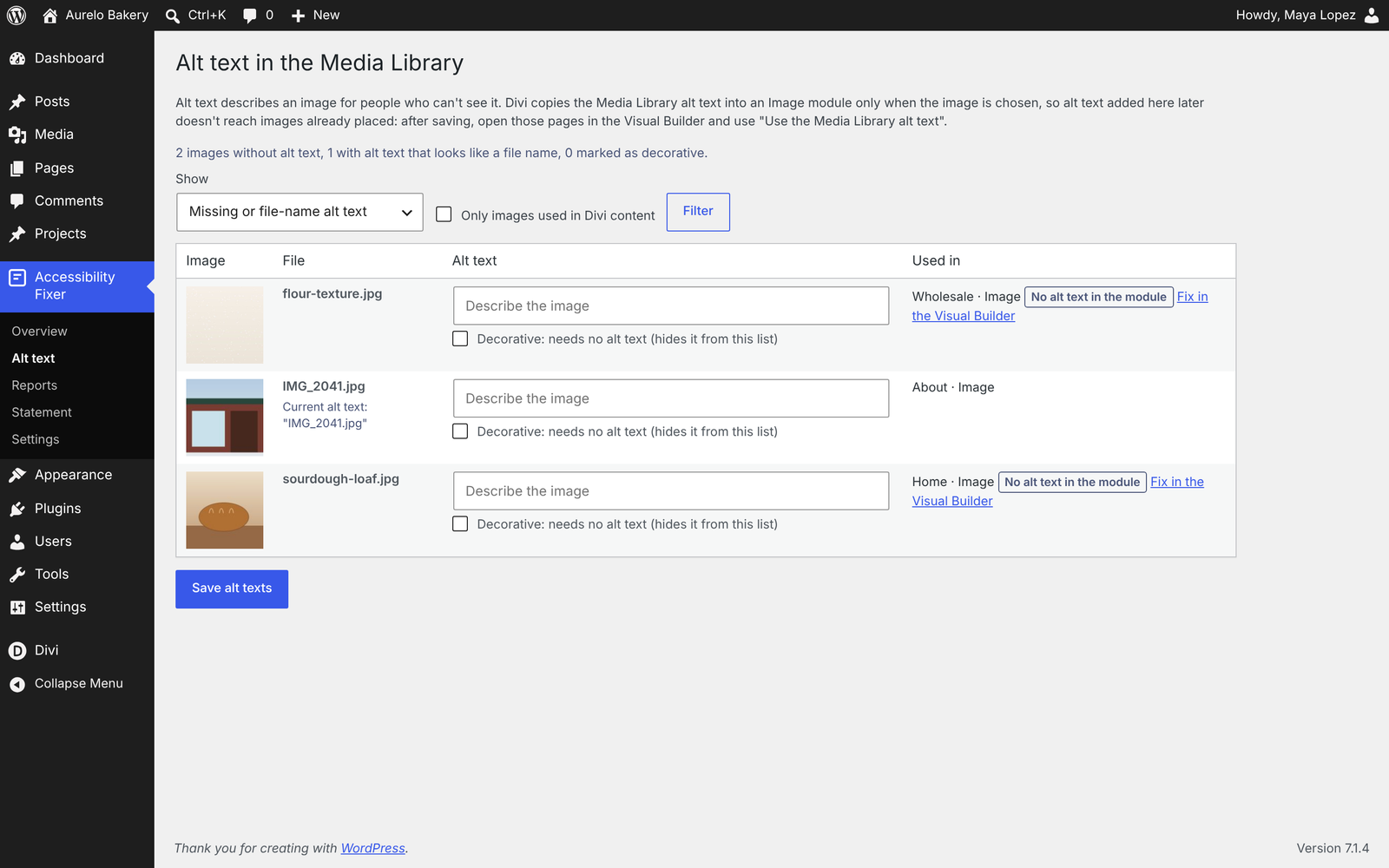
Accessibility Fixer > Alt text lists images without alt text, or with alt text that looks like a file name. Each image shows a thumbnail, its current text and where it’s used (page and module).
- Type the alt texts in the list and save them together.
- Mark an image as decorative: it leaves the list. Nothing changes on your pages.
- Recent changes lists each change with Undo (available until the text is changed again).
- Filters: missing, file name, decorative, and only images used in Divi content.
Important: Divi copies the alt text only once
Divi copies the Media Library alt text into an Image module only when the image is chosen. Alt text added in the Media Library later doesn’t reach images already placed on pages.
That’s why the Alt text screen marks modules with “No alt text in the module” and a Fix in the Visual Builder link. After saving your alt texts, open those pages and use Use the Media Library alt text in the panel.
12. Reports
Report branding
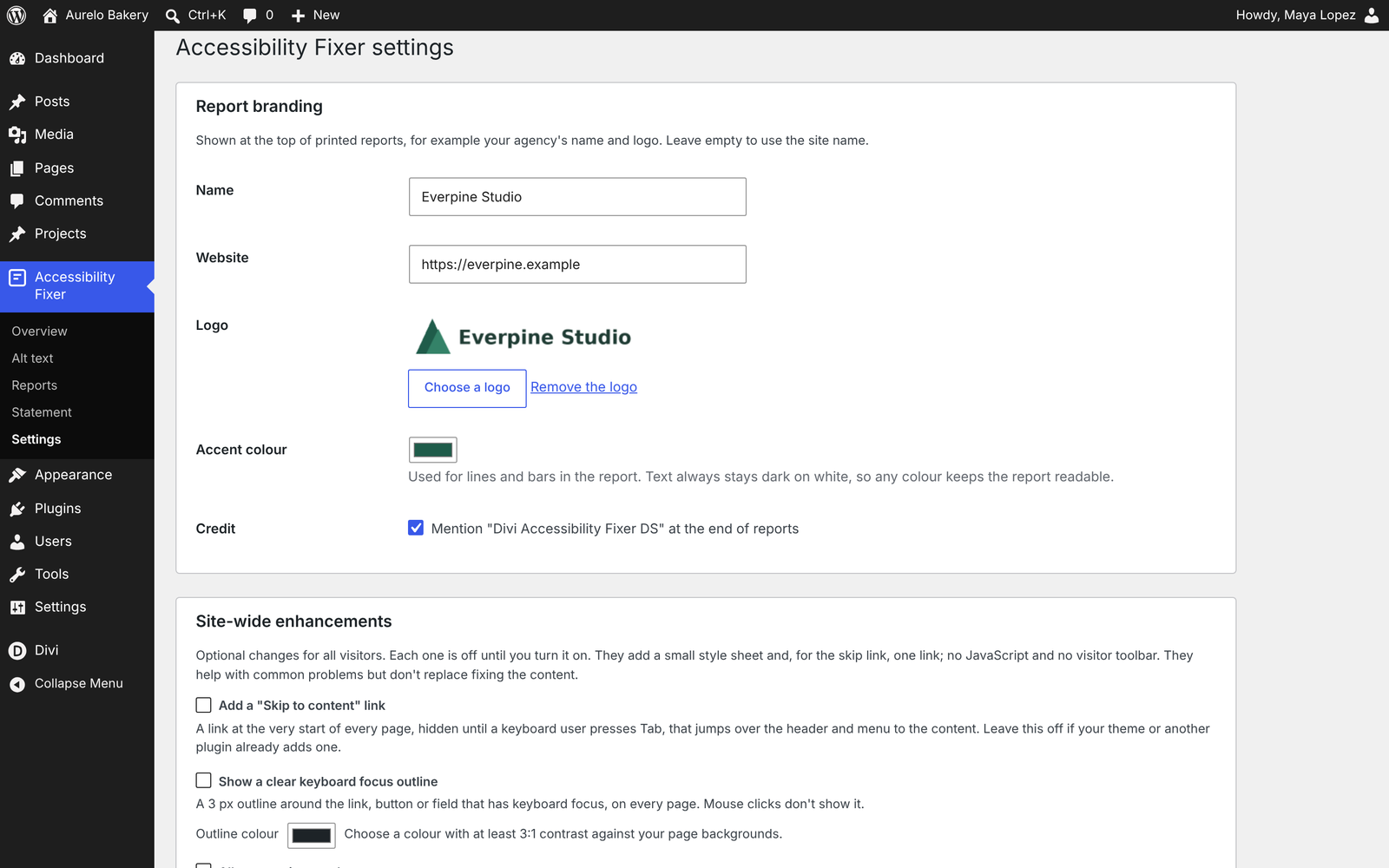
In Accessibility Fixer > Settings, set the name, website, logo (from the Media Library) and accent colour used in reports. The accent colour is only used for lines and bars; text always stays dark on white, so any brand colour keeps the report readable.
For white-label reports, untick Mention “Divi Accessibility Fixer DS” at the end of reports.
Create a report
In Accessibility Fixer > Reports:
- Choose the pages: all checked pages, only pages with open problems, or pages you pick. Optionally limit it to one content type.
- Choose what to include: Theme Builder layouts, score over time, ignored and reviewed items with their reasons, fixes made, manual checks and the HTML of each element.
- Click Open the printable report or Download CSV.
Printable report and PDF
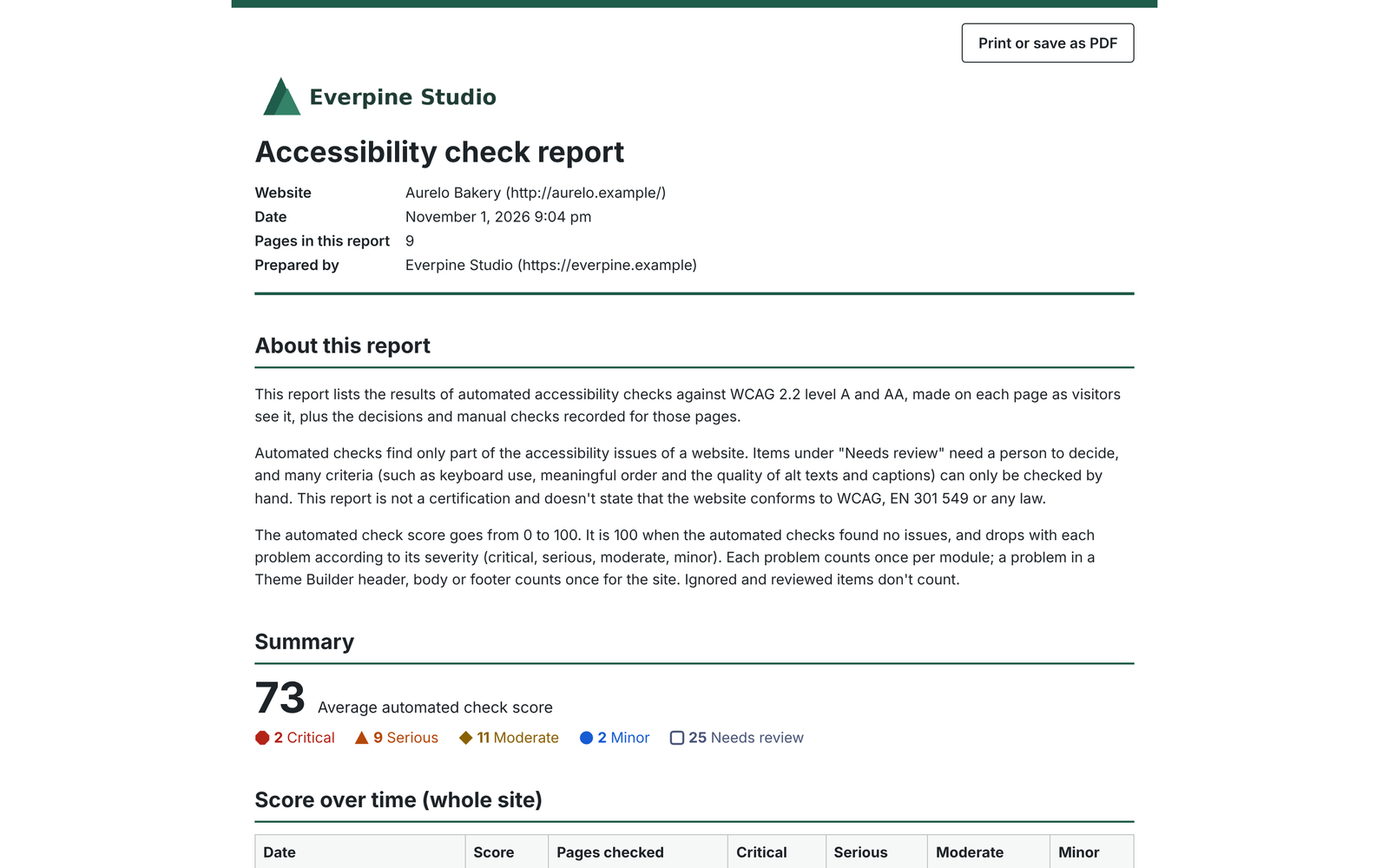
The printable report opens as a clean page with your name and logo and the date, then:
- About this report (always included): what automated checks can and can’t find, that the report isn’t a certification, and how the score works;
- a summary with the average score and the counts by severity;
- problems by type, with the WCAG reference, severity and the pages and modules affected;
- Theme Builder layouts;
- each page, worst first, with its problems and how to fix them, needs review items, ignored and reviewed items, fixes made and manual check results.
Click Print or save as PDF and choose your browser’s “Save as PDF” to get a PDF file. Each page of the site starts on a new sheet. Reports include up to 500 pages.
CSV
The CSV has one row per element, with page, URL, date, page score, module, location, problem, WCAG, severity, status (Open, Ignored, Reviewed), reason, note, detail, selector, HTML and how to fix. It opens correctly in Excel.
Who can open reports
Only users with access to Accessibility Fixer can open reports. A report link only works for the person who created it, so sharing the link doesn’t give access to anyone else. To share a report, save it as a PDF or download the CSV.
13. Accessibility statement
Accessibility Fixer > Statement helps you write an accessibility statement with a guided form that follows the EU model statement.
Important: Accessibility Fixer can’t tell you whether your website conforms to a standard. Choose the conformance status yourself, after evaluating the website with automated and manual checks, or ask an expert. The statement is a legal document in some countries; check what applies to you.
The form
| Section | What you fill in |
|---|---|
| About the website | Organisation, website, scope and legal basis. |
| Standard | WCAG 2.2 AA, WCAG 2.1 AA, EN 301 549 V4.1.1 or EN 301 549 V3.2.1. |
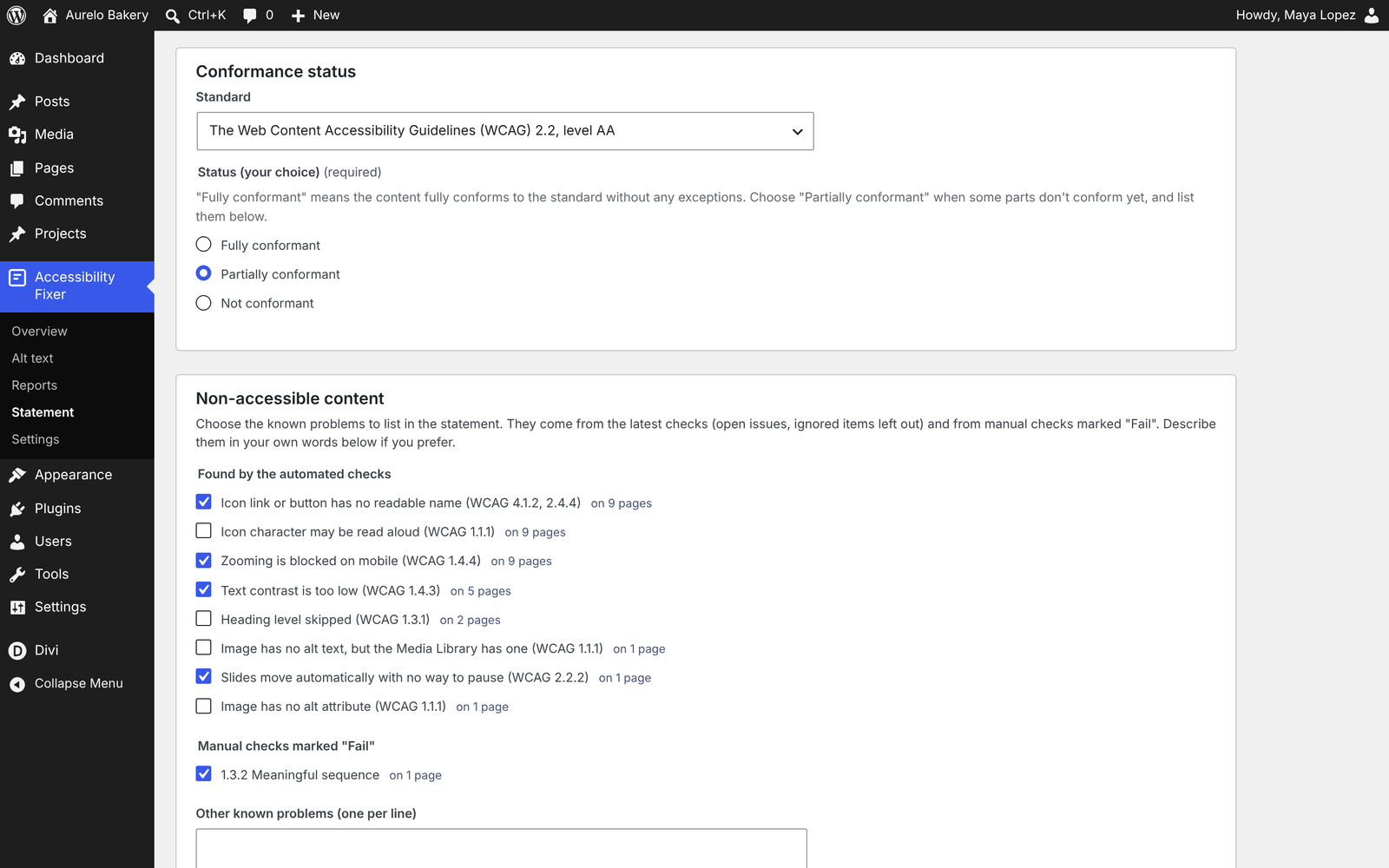
| Conformance status | Fully, Partially or Not conformant. Required, and never chosen for you. |
| Known problems | Tick problems from the latest checks (with the number of pages) and manual checks marked Fail, and add your own lines. |
| Disproportionate burden | Content you don’t make accessible because it would be a disproportionate burden, and why. |
| Preparation | Date prepared, date last reviewed, and the evaluation method: self-assessment or third party. |
| Feedback | Contact email, phone or contact page (at least one) and response time. |
| Enforcement | The enforcement procedure for your country. |
Create the statement page
- Save and create the statement page (draft) writes a normal WordPress page as a draft. Review it, then publish it and link to it from your footer.
- Later, Save and update the statement page rewrites that page with your new answers. This replaces edits made directly on the page.
- Save the answers only keeps your answers without changing the page.
The statement is written in the site’s language. Problem names use the plugin’s plain-language titles; you can edit them on the page after it’s created.
14. Optional site-wide enhancements
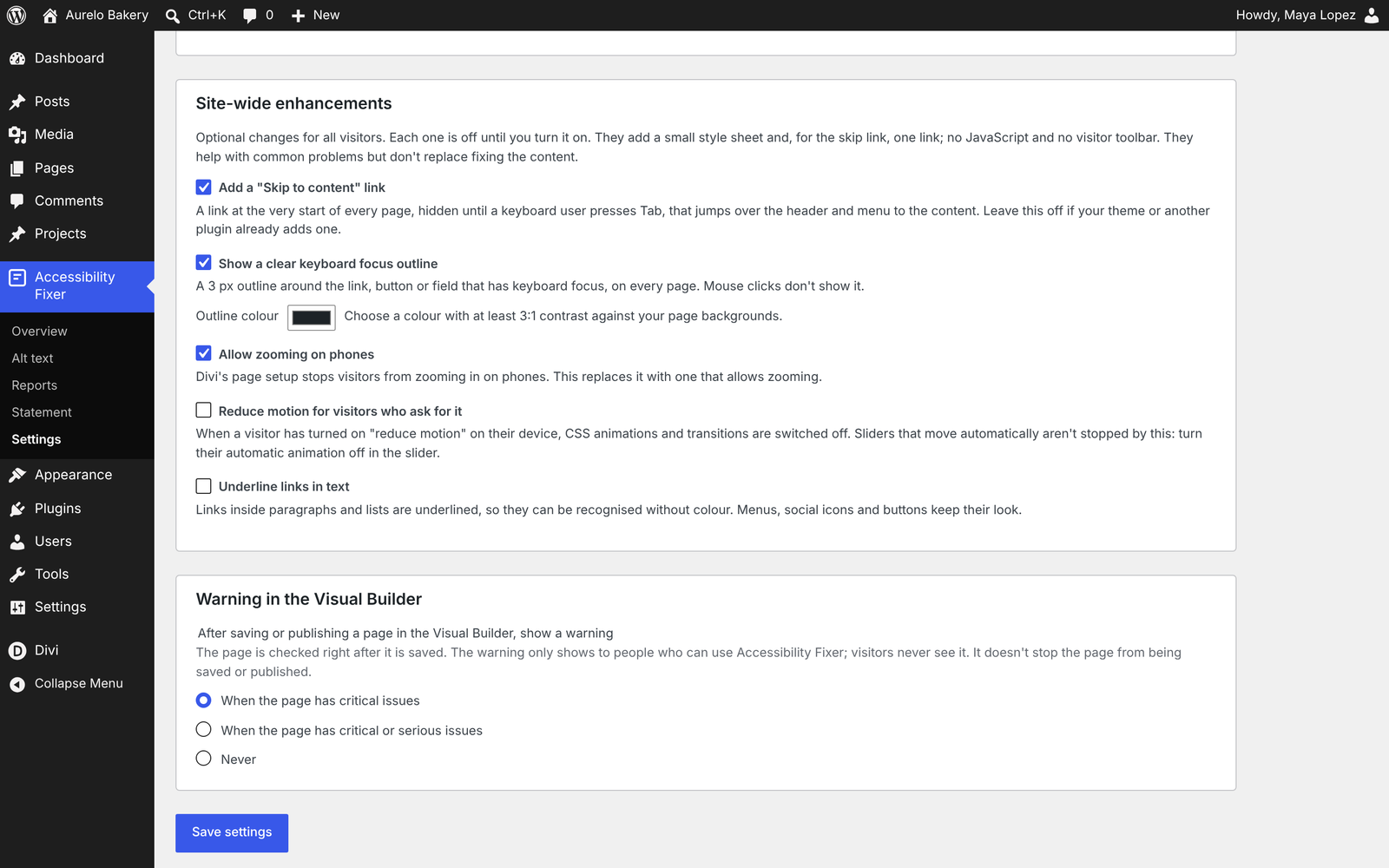
In Accessibility Fixer > Settings you can turn on small changes for all visitors. Each one is off until you turn it on. They add one small style sheet and, for the skip link, one link: no JavaScript for visitors and no visitor toolbar. They help with common problems but don’t replace fixing the content.
| Setting | What changes for visitors |
|---|---|
| Add a “Skip to content” link | The first element of every page, hidden until a keyboard user presses Tab. It moves keyboard focus to the content, also with Divi’s smooth scrolling and Theme Builder templates. |
| Show a clear keyboard focus outline | A 3 px outline, in a colour you choose, around the focused link, button or field. Mouse clicks don’t show it. |
| Allow zooming on phones | Replaces Divi’s default page setup that blocks zooming on phones. |
| Reduce motion for visitors who ask for it | Switches off CSS animations and transitions when the visitor’s device asks for reduced motion. It doesn’t stop sliders that move automatically: turn that off in the slider. |
| Underline links in text | Links inside paragraphs and lists are underlined. Menus, social icons and buttons keep their look. |
The page checks see these enhancements, so the problems they solve leave the results.
Tip: if another plugin or your theme already adds a skip link or a focus outline, turn on that feature in only one place.
15. Warning after saving
After you save or publish a page in the Visual Builder, the page is checked. If it has critical issues, a message appears, for example “Saved. This page has 2 critical accessibility issues.”, with Open Accessibility Fixer and Dismiss.
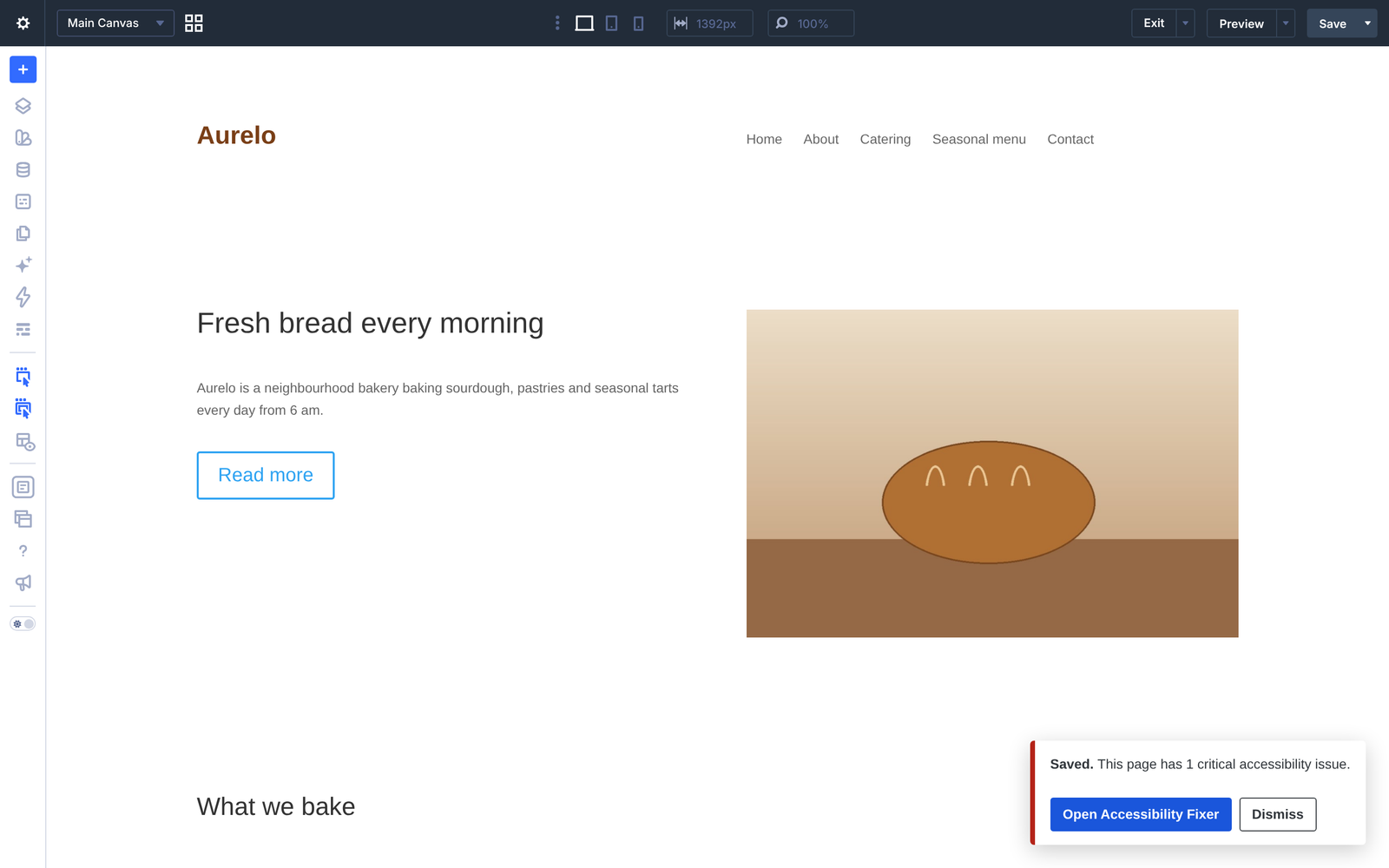
Choose when it shows in Settings, under “After saving or publishing a page in the Visual Builder, show a warning”:
- When the page has critical issues (default)
- When the page has critical or serious issues
- Never
The warning never stops a page from being saved or published: Divi 5 has no way for an extension to check a page before it’s saved. Only people who can use Accessibility Fixer see it; visitors never do.
16. The automated check score
Each checked page gets an automated check score from 0 to 100. 100 means the automated checks found no issues on the page.
- Each problem counts once per module, weighted by severity: Critical 10, Serious 5, Moderate 2, Minor 1.
- Needs review items, ignored items and reviewed items don’t lower the score.
- The site score on the Overview is the average of the checked pages.
The score measures only what automated checks can find. A score of 100 doesn’t mean a page is fully accessible: use the manual checks for the rest.
17. Privacy, access and uninstall
Privacy
- Nothing is sent outside your site. Checks run in your browser; results are stored in your WordPress database.
- The check code loads only during a check, for logged-in users who can use Accessibility Fixer. Visitors and normal page views load nothing from the plugin, except the enhancements you turn on.
Access
Accessibility Fixer uses its own capability, dsaf_manage_accessibility, given to administrators by default. Only users with it can see the screens, the builder panel and the warning, and fix, ignore or restore items, and only on content they’re allowed to edit.
Developers can change which roles get it with the dsaf_capability_roles filter.
Uninstall
Deleting the plugin from the Plugins screen removes its tables, settings and capability. Fixes already saved in your pages stay, because they’re normal Divi settings. The statement page stays too, as a normal WordPress page.
The plugin’s own screens
The dashboard screens, the builder panel (in Divi’s light and dark interface) and the printable report pass an automated WCAG 2.2 AA check.
18. Using it with other accessibility plugins
- Divi Accessibility Fixer DS was tested with Equalize Digital Accessibility Checker (free) active at the same time: both worked, with no errors or conflicts.
- If another plugin also adds a skip link or a keyboard focus outline, turn on that feature in only one of them, so visitors don’t get two.
19. Troubleshooting and known limits
I see a notice about my Divi version
The plugin needs Divi 5.14 or later. Update Divi from the WordPress Updates page.
I don’t see the Accessibility Fixer menu or builder button
Only administrators can use the plugin by default. See Access.
The site check stopped
The site check runs in your browser tab. If the tab was closed, open Accessibility Fixer > Overview and click Continue the check.
The dashboard score didn’t change after my fixes
Save the page in the Visual Builder, then click Check again on the dashboard. Builder results aren’t stored.
I added alt text in the Media Library, but the issue is still there
Divi copies the alt text into an Image module only when the image is chosen. Open the page in the Visual Builder and use Use the Media Library alt text. See Alt text in the Media Library.
The builder says images from other plugins were skipped
Images in modules from other plugins (for example Divi Scroller DS) aren’t checked for alt text in the builder, because their builder preview can lack the alt text the published page has. The panel says how many were skipped. Check the page from the dashboard to see their results.
The contrast fix isn’t offered
Contrast fixes cover Heading, Button and Text modules and colours set in their design settings. If the colour is set inside the text, or in another module, follow How to fix or use Go to module.
I can’t add autocomplete to my Contact Form fields
Divi’s Contact Form fields don’t accept extra attributes, so autocomplete can’t be added from the panel. The review item explains this; mark it as reviewed once you’ve decided.
Known limits
- Fixes are made in the Visual Builder, one page at a time; the dashboard links straight to each issue. Media Library alt text is edited on the Alt text screen.
- Undo from the dashboard exists for Media Library alt text only. A fix saved in a page is changed back in the Visual Builder.
- The site check needs the dashboard tab open. The background check of the saved content runs without it but only finds image and slider setting problems.
- Contrast fixes cover Heading, Button and Text modules. For other modules, Go to module opens the settings to change the colour by hand.
- The link text fix changes the text only on Buttons; other modules get a label for screen readers.
- In the Visual Builder, image alt text checks skip modules from other plugins; the dashboard check covers them.
- Contact Form fields can’t take
autocompletefrom the panel. - The builder bar button shows no issue count; the count is in the panel.
- The warning comes right after saving, not before.
- The motion enhancement doesn’t stop sliders, carousels or videos that move automatically; those are reported by the checks and fixed in the module.
- Visible focus is judged from the style sheets; focus styles set by JavaScript aren’t seen.
- PDF reports are made with the browser’s “Save as PDF”. Reports include up to 500 pages.
- Updating the statement from the form replaces edits made directly on the statement page.
- The site address and the WordPress address must be on the same domain.
- Site checks take about 3 to 5 seconds per page.
- Version 1.0.0 was tested in Chromium-based browsers. Safari and Firefox haven’t been tested yet.
20. FAQ
Will this make my website compliant?
No plugin can do that on its own. Automated checks find only part of the accessibility issues. Divi Accessibility Fixer DS helps you find and fix them, shows what needs a person to decide and gives you a manual checklist for the rest. For a formal evaluation, ask an accessibility expert.
Does it add a toolbar or widget for visitors?
No. Fixes are saved in your Divi content. Visitors only get the optional enhancements you turn on: a small style sheet and, for the skip link, one link.
Does it change my pages automatically?
No. Nothing changes until you apply a fix and save the page in Divi. The optional enhancements are off until you turn them on.
Which Divi version do I need?
Divi 5.14 or later. It doesn’t work with Divi 4.
Which standard does it check?
WCAG 2.0, 2.1 and 2.2 at level A and AA, plus 21 checks for problems common on Divi sites.
Does it check Theme Builder headers and footers?
Yes. Problems in a layout are shown on the pages that use it, counted once for the site, and fixed once in the layout. See Theme Builder layouts.
Can it check the whole site automatically every night?
The full site check runs in your browser tab while it’s open. Every hour, a background check reads the saved content for image and slider setting problems, without loading the pages.
Can I give reports to my clients?
Yes. Add your name, logo and colour in Settings, untick the plugin mention for white label, then save the report as a PDF or download the CSV.
Does it collect any data?
No. Nothing is sent outside your site.
What happens when I delete the plugin?
Its tables, settings and capability are removed. Fixes saved in your pages stay, because they’re normal Divi settings.
Where do I get help?
Open a support ticket on the Divi Marketplace, or use the DiviStation support forum in your divistation.com account.