Rows
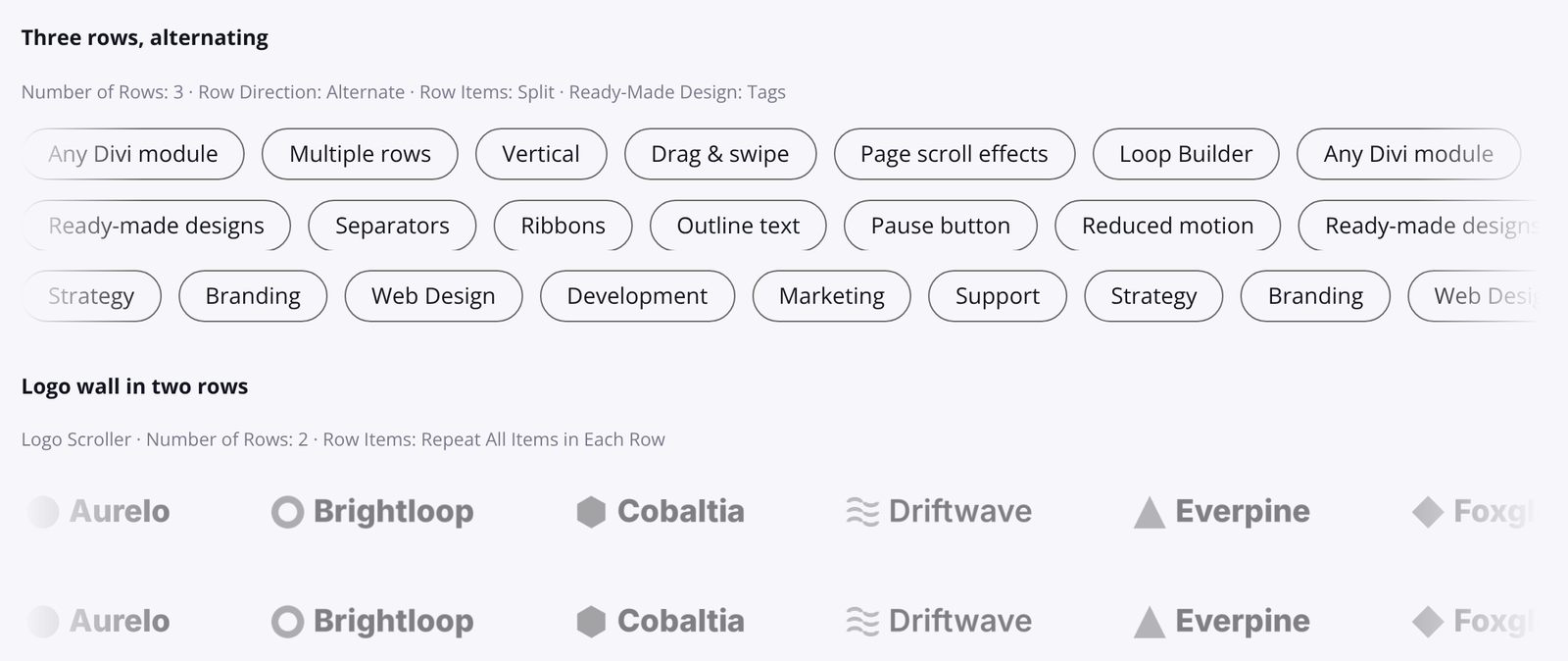
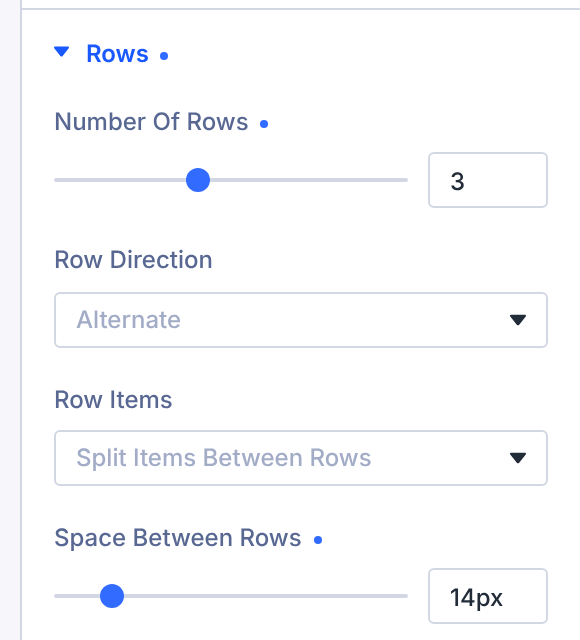
Use Content > Rows to show the items in several scrolling rows from one module. Rows are available on Text Scroller, Logo Scroller and Scroller. Row Direction, Row Items and Space Between Rows appear once Number of Rows is 2 or more.
| Setting | Options | What it does |
|---|---|---|
| Number of Rows | 1–6 | Splits the items into several rows (columns when the items move up or down). Default: 1. |
| Row Direction | Alternate, Same Direction | Alternate makes every other row move the opposite way. Default: Alternate. |
| Row Items | Split Items Between Rows, Repeat All Items in Each Row | Split shares the items between the rows in order. Repeat shows every item in each row. Default: Split. |
| Space Between Rows (responsive) | px, em, rem, vw, vh | Distance between rows, or between columns when the items move up or down. Default: 16px. |
All rows of a module work together. They move at the same speed, hovering or focusing one row pauses all of them, and one pause button controls every row.
Tip: with Split, give each row enough items to fill the width. For a small number of logos, Repeat All Items in Each Row often looks better.