Scrolling settings
Text Scroller, Logo Scroller and Scroller share these settings in Content > Scrolling. Settings marked “responsive” can have a different value on desktop, tablet and phone.
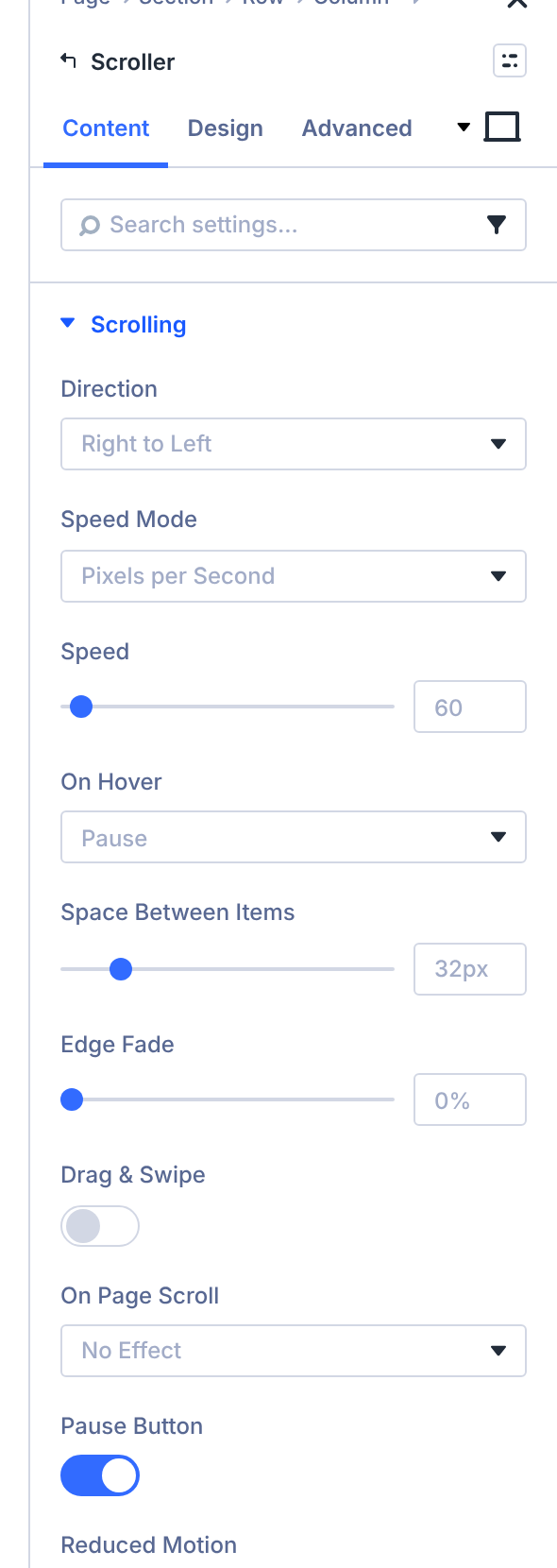
| Setting | Options | What it does |
|---|---|---|
| Direction (responsive) | Right to Left, Left to Right, Bottom to Top, Top to Bottom | Which way the items move. Up and down scroll the items in a column. Default: Right to Left. |
| Height (responsive) | 100–1000px, or em, rem, vh | Height of the scrolling area when the items move up or down. Default: 400px. |
| Item Alignment (responsive) | Left, Center, Right, Stretch | Horizontal position of the items when they move up or down. Stretch makes every item as wide as the column. |
| Speed Mode | Pixels per Second, Seconds per Loop | Pixels per Second keeps the same speed for any amount of content. Seconds per Loop always takes the same time to show all items. |
| Speed (responsive) | 0–400 (up to 2000) | Speed in pixels per second. Default: 60. |
| Seconds per Loop (responsive) | 1–120 (up to 600) | Time to scroll through all items once. Default: 40. |
| On Hover | Keep Moving, Pause, Slow Down | What happens when a visitor hovers over the items. Default: Pause. |
| Hover Speed | 5–95% | Speed on hover as a percentage of the normal speed, when On Hover is Slow Down. Default: 30%. |
| Space Between Items (responsive) | px, em, rem, vw, % | Distance between items, also used where the loop repeats. |
| Edge Fade (responsive) | 0–40% or px | Fades the items out towards both edges. 0 turns it off. |
| Drag & Swipe | On / Off | See Drag & Swipe. Default: Off. |
| After a Swipe | Keep Direction, Follow Swipe | See Drag & Swipe. |
| On Page Scroll | No Effect, Speed Up While Scrolling, Reverse When Scrolling Up, Speed Up and Reverse, Move With Page Scroll | See Page scroll effects. |
| Scroll Intensity | 1–10 | How strongly the items react to page scrolling. Default: 4. |
| Pause Button | On / Off | Shows a pause/play button. Default: On. See Accessibility. |
| Reduced Motion | Stop (Recommended), Slow Down, Keep Moving | Behaviour for visitors who ask their device to reduce motion. Default: Stop. See Accessibility. |
Some settings appear only when they apply:
- Height and Item Alignment appear when any device uses Bottom to Top or Top to Bottom.
- Speed appears with Speed Mode set to Pixels per Second, and Seconds per Loop with Seconds per Loop.
Whatever the screen width, the scroller repeats the items as needed so the loop never shows a gap, and it moves at a constant speed. It also stops working in the background when it’s off-screen.